Canvas
Create and organize visual boards directly in Eagle with media, notes, drawing tools, and structured layouts for moodboards, planning, and creative workflows.
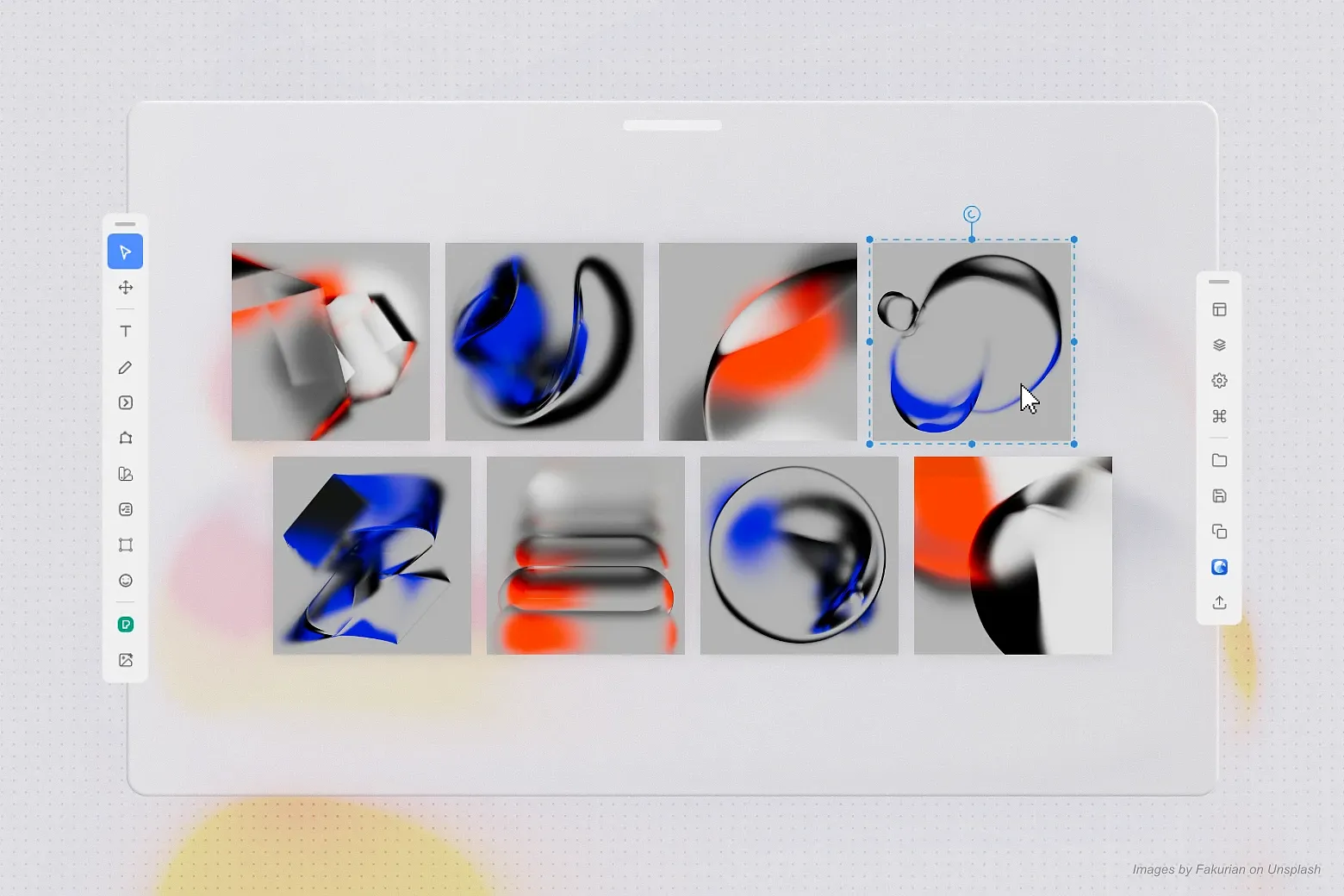
Canvas provides a powerful visual board system directly within Eagle, designed for organizing references, notes, layouts, and interactive content in a single workspace. It streamlines workflows for artists, designers, and creative professionals working with moodboards, planning boards, and research canvases.
Key Features
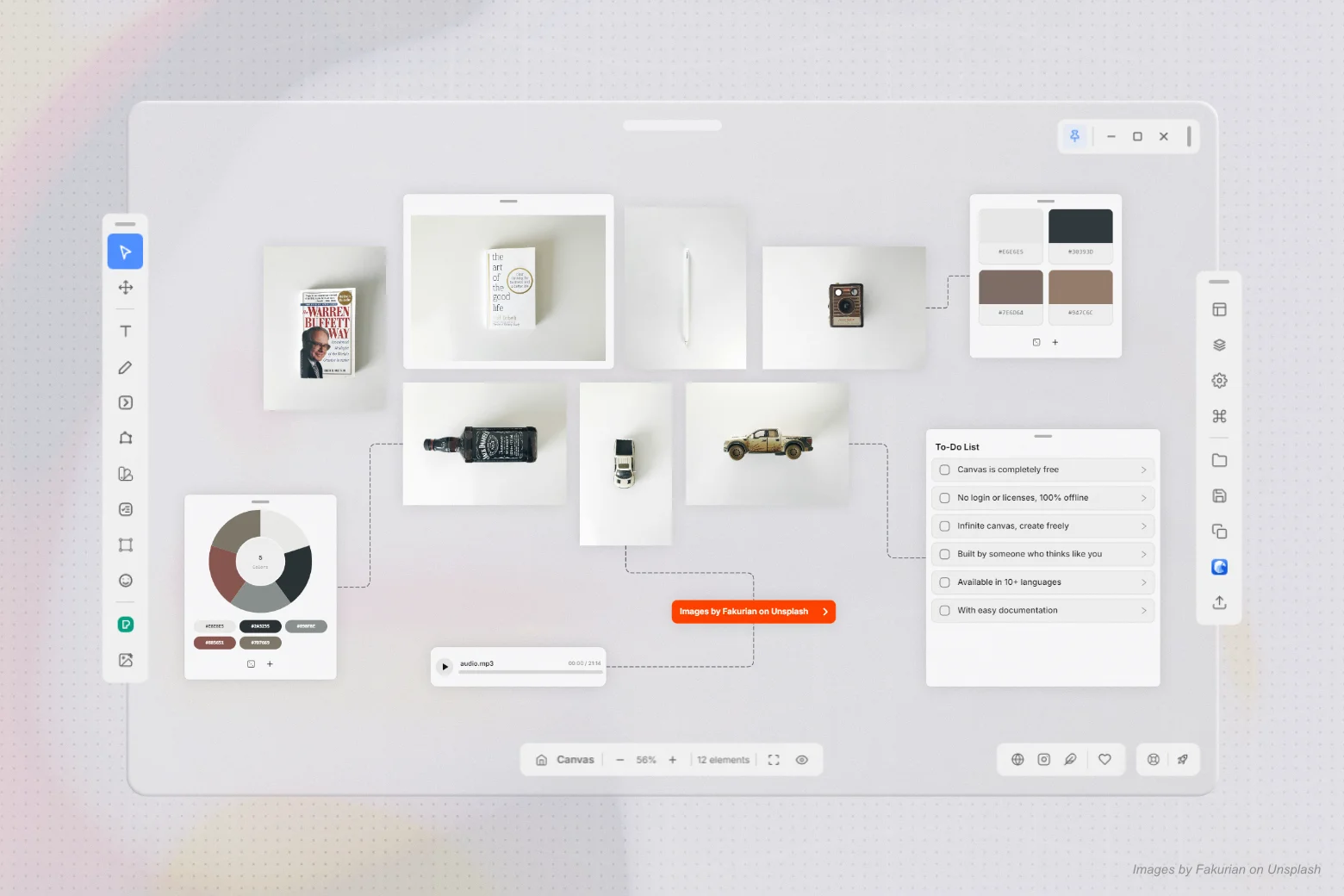
- Visual Board Workspace – Create flexible infinite canvases for moodboards, references, and structured layouts
- Media Placement – Add and organize images and audio directly on the board
- Text & Drawing Tools – Write notes, annotate, and sketch ideas with customizable text and freehand drawing
- Shapes & Diagrams – Build layouts using geometric shapes, arrows, and lines for visual communication
- Interactive Buttons – Create clickable elements that link to URLs or navigate between items on the board
- Sticker System – Add quick visual markers and reactions using emoji-style stickers
- To-Do Cards – Manage tasks with structured checklist components integrated into the canvas
- Frames & Layouts – Organize content into structured sections with columns and separators
- Color Palette Generator – Extract and create palettes from images for art direction workflows
- 3rd-Party Image Search (Pexels) – Search and import stock images using your own Pexels API key; search terms, language settings, and selected filters are sent to the Pexels API to retrieve matching images
- Layers Panel – Full control over visibility, grouping, ordering, and hierarchy
- Properties Panel – Precise positioning and transformation (X, Y, width, height, rotation)
- Grouping & Locking – Organize elements and protect layouts from accidental edits
- Grid & Snap System – Align content with grid and snapping options
- Show Names & Nodes – Visualize item labels and connection points for navigation
- Multiple Tools – Select, Pan, Zoom, Draw, Shape, Text, and more
- Zoom Controls – Fit to screen, focus selection, and smooth navigation across large boards
- Keyboard Shortcuts – Fast workflow with full shortcut support
- Eagle Integration – Create, open, and save boards directly inside Eagle
- Multiple Save Options – Save, Save As, Save Copy, and Save in Eagle
- Export Formats – Export boards as PNG, JPG, WEBP, or PDF
- Flexible Export Scopes – Export selected items, areas, or the entire board
- Transparent Background Support – For compatible formats
- Reference Mode – Keeps projects lightweight using original file paths
- Portable Mode – Packs smaller media for sharing; larger files stay linked to their original location.
- Install Canvas Extension
- Create a new canvas or open an existing one from Eagle
- Add media, notes, shapes, and organize content using frames and layers
- Use tools like draw, text, and stickers to annotate and refine ideas
- Connect elements with buttons and structure your board visually
- Save directly into Eagle or export your board for sharing
[Add] Customizable Shortcuts - You can now configure custom shortcuts with up to 3 simultaneous keys for each action in the Shortcuts panel, featuring smart conflict detection, interactive recording, automatic persistence, and factory reset.
[Add] Media Reconnection & Startup Warning - Added an option in Settings > Media & Files to enable or disable automatic missing media warnings on startup, plus a dedicated modal to scan folders and reconnect local files safely without root-drive freezes.
[Add] Auto-Fade Idle Docks - Added an option in Settings > Canvas to automatically fade toolbars and tool panels to low visibility when the cursor is on the canvas, restoring full visibility instantly on hover.
[Improvement] Multi-Monitor Adaptation & Dynamic UI Scale - Added automatic adaptation for HD, Full HD, 2K, and 4K displays with dynamic DPI support and a dedicated selector in Settings > Interface to choose UI scale (Auto, 80% to 140%).
[Improvement] Reload PDF and PSD Files - Added a reload button for PDF and PSD dynamic media elements directly on canvas element controls, in the Properties panel, and in the context menu.
[Improvement] Search in Layers and Recent Canvases - Added real-time search in the Layers panel and home screen to filter recent canvas projects, plus a compact group creation icon button with tooltip.
[Improvement] Smart Free Dock Positioning - You can now freely drag toolbars and docks to any custom floating position on the canvas, with an intentional 1-second dwell threshold to avoid accidental snapping or reorienting.
[Improvement] Window Position and State Persistence - The canvas window now automatically remembers its exact location, size, and display state (normal or maximized) across sessions, reopening right where you left off.
[Improvement] Native Titlebar and Modal Adaptation for macOS and Windows - Added native titlebar layout adaptation for macOS and Windows across all modals, widgets, and window controls, automatically adjusting button placement (traffic light close buttons on the left for Mac, standard layout for Windows).
[Fix] Selected Area Export Outlines - Fixed dashed selection outlines incorrectly appearing on exported image outputs.
[Fix] Export Scope Selection Sync - Fixed export panel options and button states to dynamically unlock and switch between Selected Area and Complete Board when selecting or deselecting items on the canvas.
[Fix] Connected Arrow Handles and Unlinking - Fixed connected arrow movement to only manipulate individual point handles without distortion, allowing dragging the arrow tip handle outward to unlink smoothly.
[Add] Full PSD and PSB Support - Import complete Photoshop files in PSD or PSB format directly into the canvas, or select individual layers to import only the content you need.
[Add] Full PDF Support - Import complete PDF documents or select specific pages. PDF content can be added as static images or opened through the interactive PDF reader.
[Add] Canvas Minimap - Added a floating minimap that provides an overview of the entire infinite canvas, making navigation and visual orientation faster and easier.
[Add] Predefined Color Palettes - The color palette panel now includes a collection of predefined palettes for quickly selecting ready-made and harmonious color combinations.
[Add] Highlighter Tool - Added a dedicated highlighter to the drawing panel, featuring reduced opacity and optimized blending for highlighting content without obscuring it.
[Improvement] Background Grid and Dots - Improved the canvas background display options for grid lines and dots, providing clearer visual references for alignment and element positioning.
[Improvement] Smart Alignment when Resizing - Smart alignment guides now also appear while resizing elements, helping align their edges, centers, and dimensions with nearby items.
[Improvement] New Color Picker - Redesigned the integrated color picker with a more modern, practical, and precise interface for selecting fill, stroke, drawing, and text colors.
[Improvement] New Emoji and Sticker Library - Improved the emoji and sticker selector with a redesigned interface and an expanded library for customizing visual boards.
[Improvement] Editable Drawing Thickness - The stroke thickness of freehand drawings can now be adjusted after the drawing has been created.
[Improvement] Text Tool Enhancements - Improved the text tool with opacity controls, alignment fixes, and a more optimized workflow for creating and editing text boxes.
[Improvement] Visual Undo and Redo Buttons - Added dedicated Undo and Redo buttons directly to the interface, making action history easier to control with a single click.
[Improvement] Shape Color and Opacity Controls - Geometric shapes now support separate stroke and fill colors, along with individual opacity controls for each shape.
[Improvement] Shape Editing with Bézier Curves - Shapes created with the Pen tool can now be edited after creation by moving anchor points and adjusting Bézier handles.
[Improvement] Bézier Curves for Connection Arrows - Connection arrows now include additional control points, allowing you to create curved paths and fully customized visual flows.
[Improvement] Security Testing Coverage - Expanded automated security tests to improve overall plugin stability and reliability.
[Improvement] Faster Plugin Startup - Optimized initialization workflow and lazy-loaded heavy libraries for significantly faster canvas startup.
[Fix] Spacebar Tool Restoration - The Space shortcut now correctly remembers the previously active tool while panning and restores it when the key is released, instead of switching back to the Select tool.
[Fix] Image Rendering Quality - Improved the minimum rendering quality used while panning the canvas, preventing images from becoming excessively pixelated during navigation.
[Fix] Tool Panel Positioning - Fixed an issue that caused tool panels to move out of position after hiding the interface, closing and reopening the canvas, and displaying the interface again.
[Fix] Space Shortcut in Viewer Mode - The Space key can now be used normally to pan the canvas while in Viewer mode.
[Fix] Panel Closing Animations - Added smooth visual transitions when closing or collapsing tool panels and floating containers.
[Fix] Project & File Security - Improved project and file handling security to prevent unauthorized access and operations outside the plugin's permitted workspace.
[Fix] External Link Protection - Enhanced validation for external links, blocking potentially unsafe protocols and destinations.
[Fix] URL Thumbnail Security - Improved thumbnail generation for web links to prevent access to internal or private network resources.
[Fix] Canvas Archive Safeguards - Enhanced .canvas file archive parsing with preflight header validation and memory safeguards to ensure maximum stability and security.
[Add] Automatic Arrow Connections - Arrow shapes can now automatically connect to items like images or frames. Hover the arrow tip over an item for a few milliseconds while drawing to see the connection overlay. Once connected, the arrow tip moves with the item.
[Add] Smart Alignment Guides - Dragging selected items now shows magnetic alignment guides for top, bottom, left, right, and center positions against other elements. The feature also works with multi-selection bounds and can be disabled in Canvas Settings.
[Improvement] Axis-Locked Drag with Shift - Holding Shift while dragging an item now constrains movement to the horizontal or vertical axis, based on the dominant drag direction.
[Improvement] Hide Floating Panels - Clicking an active tool button (like Text or Shapes) hides its panel while keeping the tool active. For Palette, Todo, and Frame, the button serves to exit the tool.
[Improvement] Continuous Creation Workflow - Creation tools remain active after use, allowing you to create multiple items in sequence (now cascaded to prevent overlapping). You can click empty canvas space to clear the selection without leaving the tool.
[Improvement] Flexible Tool Selection - When using creation tools, clicking existing elements selects them directly, enabling quick edits (like move or resize) without manually switching to the select tool.
[Improvement] Improved Focus & Zoom - Double-clicking an item or group in the Layers panel now automatically zooms and focuses on it. The focus function (Z shortcut) also adapts to show all selected items if multiple are selected.
[Add] Pen Shape Snap - Added Shift snapping for the Pen shape tool, constraining segments to horizontal, vertical, and 45° diagonal angles for more precise shape creation.
[Improvement] macOS Compatibility - Added cross-platform path handling and removed Windows-specific dependencies to ensure proper functionality on macOS.
[Improvement] UI and Layout - Improved spacing, hierarchy, separators, and control placement for a cleaner and more consistent interface.
You may also like