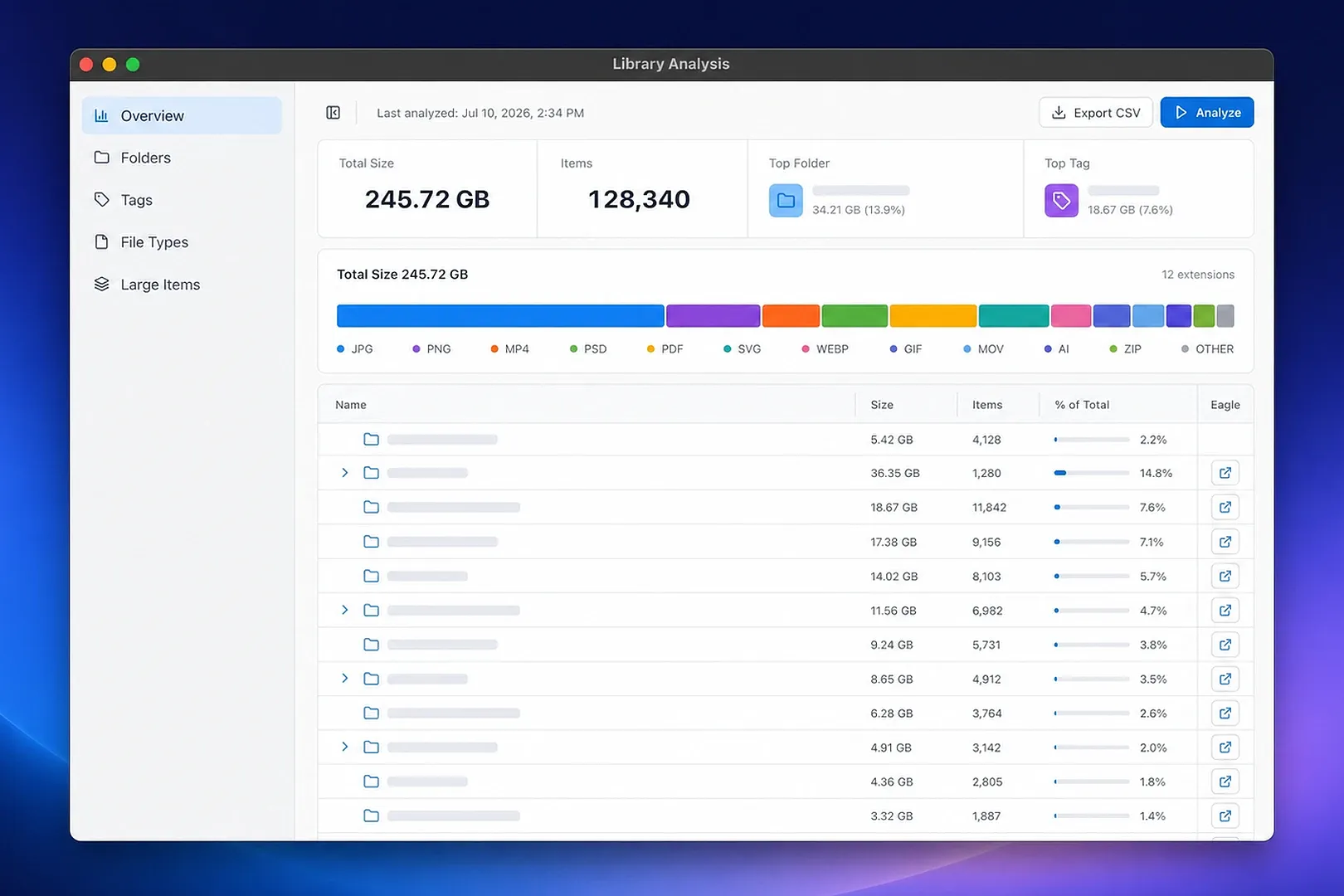
Library Analysis is an Eagle plugin for analyzing storage usage across your library by folder, tag, file type, and individual item.
The plugin analyzes your library locally through Eagle's API. It does not send library data to an external service.
Features
- Review total library size, item count, top folder, and top tag
- Compare storage usage by folder, tag, and file type
- Search, filter, and sort the largest items in the library
- Preview images, videos, and audio inside the plugin
- Export the current results as CSV
- Open a folder or select an item in Eagle
- Add a tag to selected items without replacing their existing tags
- Move selected items to Eagle Trash after confirmation
Overview
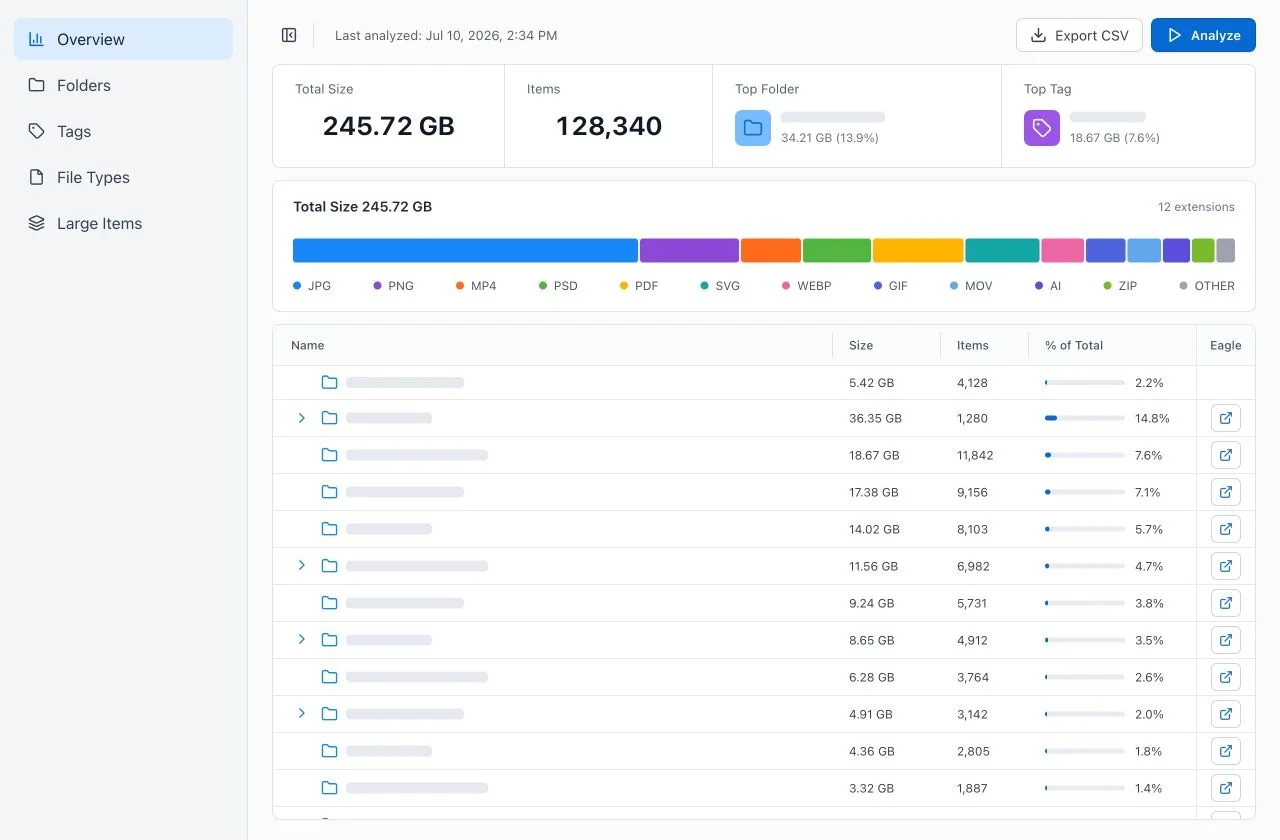
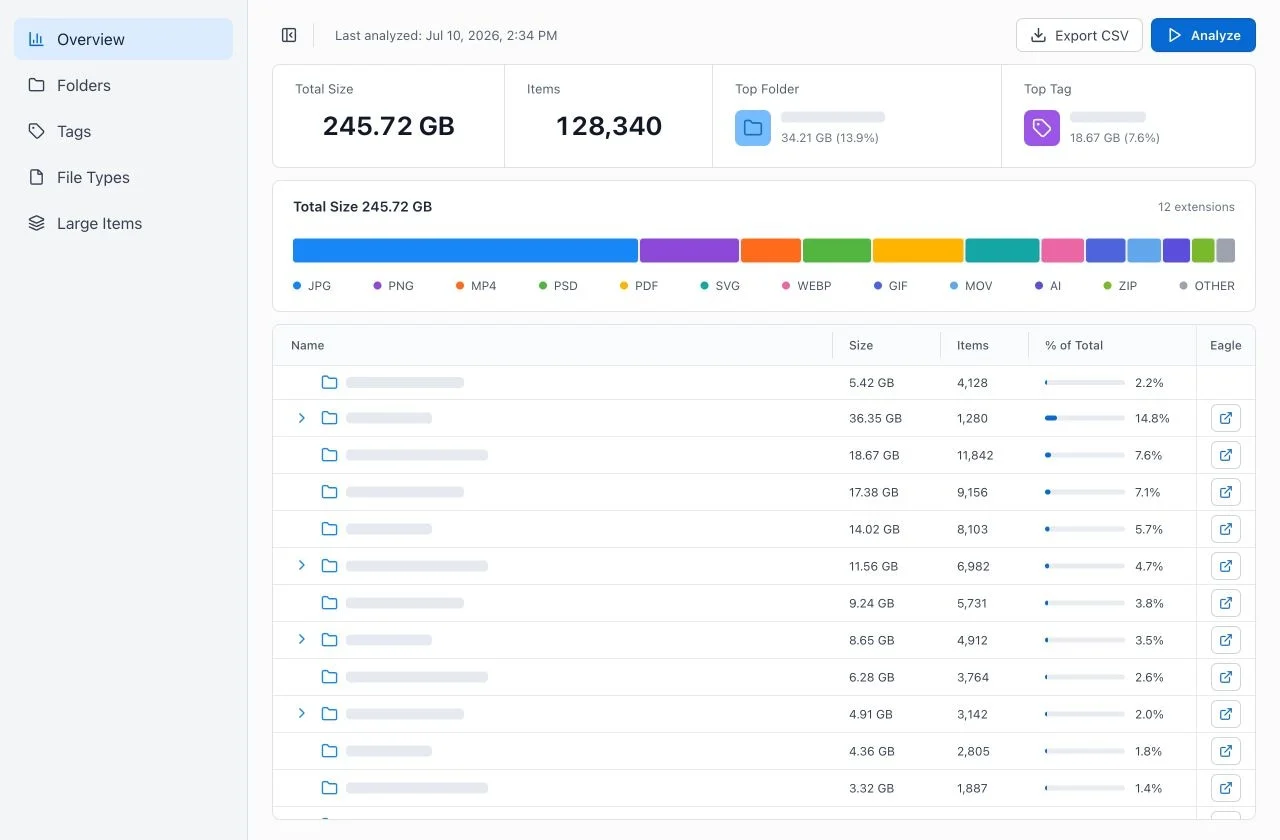
See the total library size, item count, largest folder and tag, file-type distribution, and folder tree in one place.
Folders
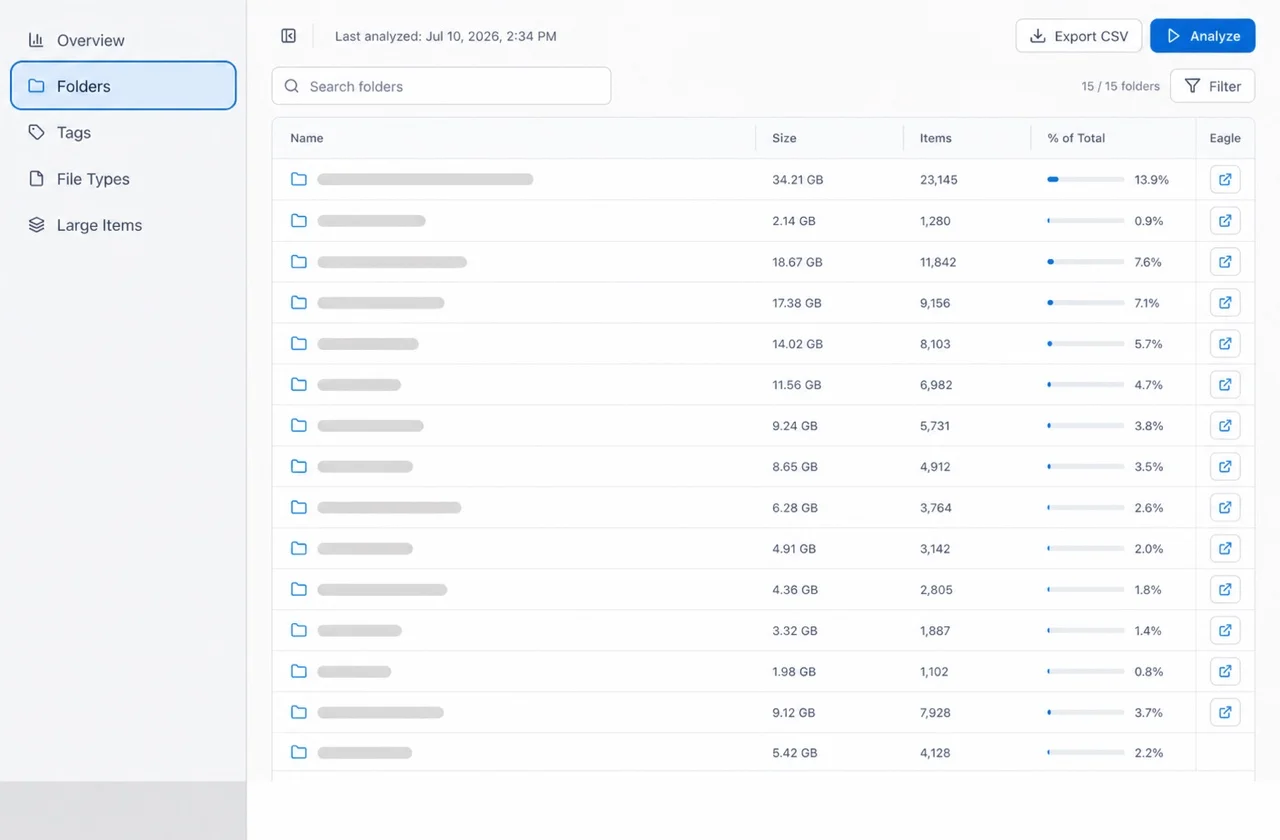
Compare the size, item count, and share of total library storage for each folder. Use the button in the Eagle column to open a folder in Eagle.
Tags
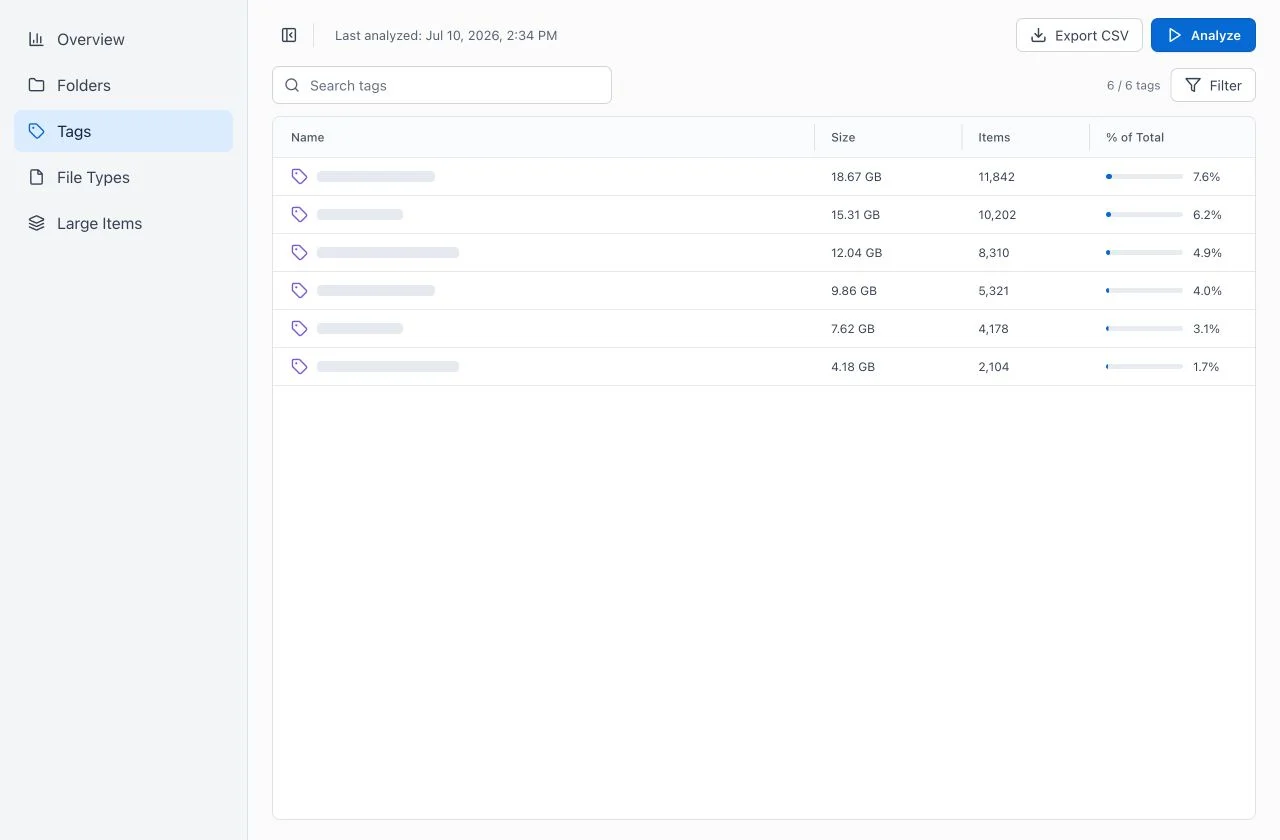
Compare the size, item count, and share of total library storage for each tag.
File Types
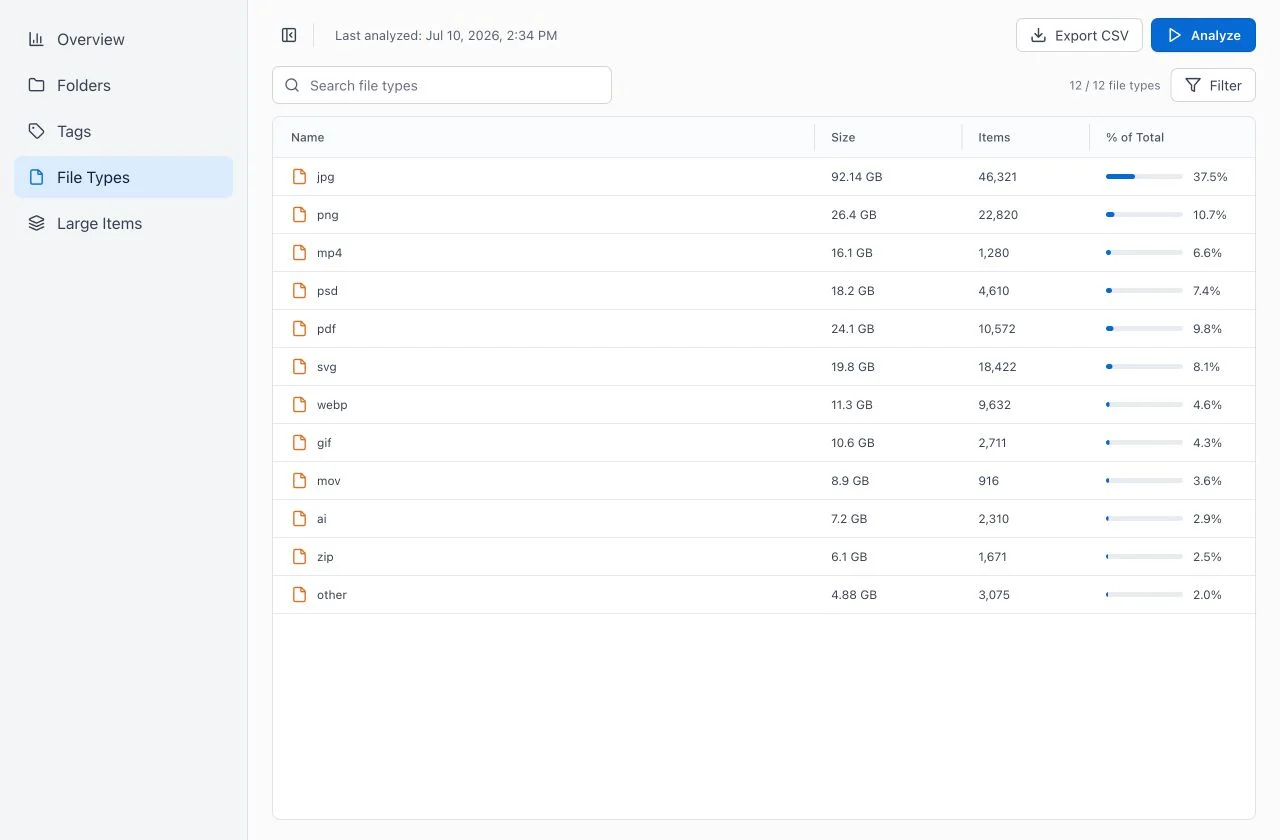
Compare the size, item count, and share of total library storage for each file extension.
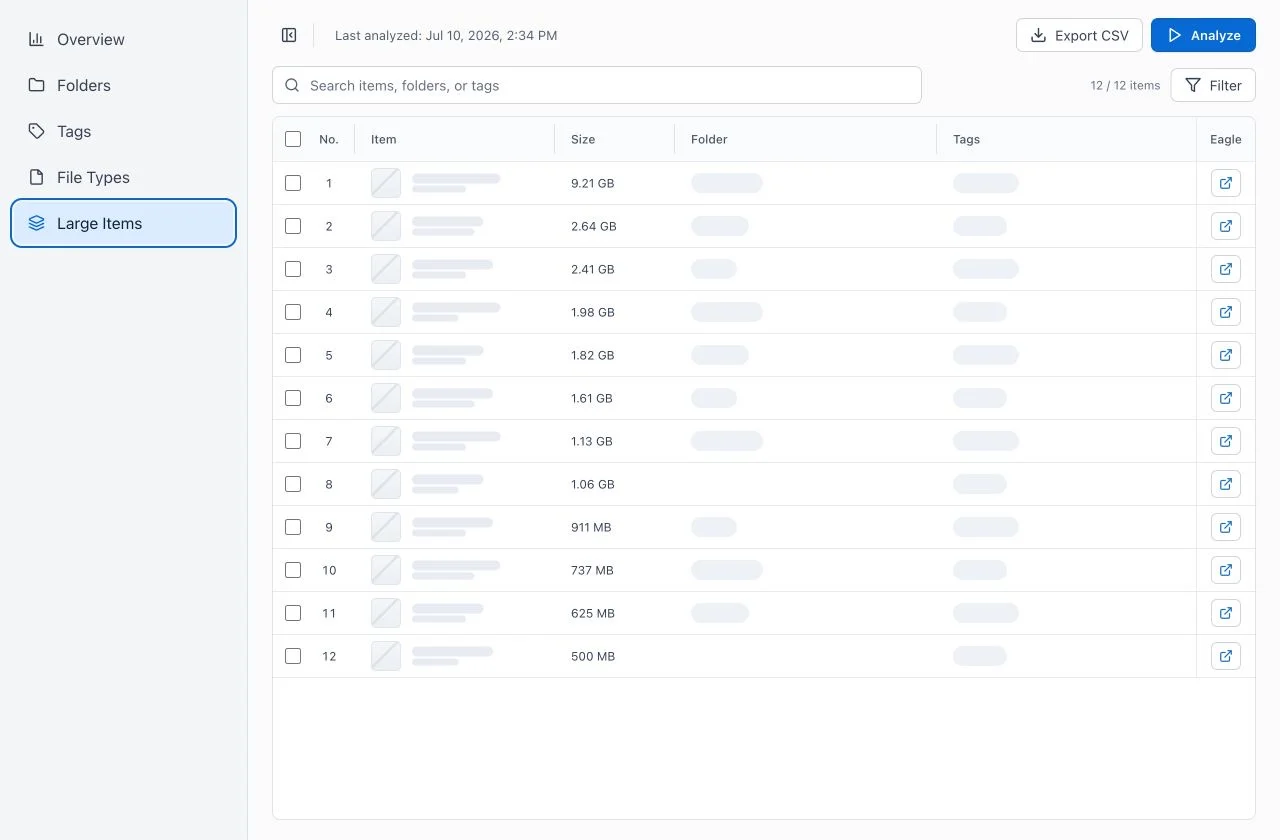
Large Items
Review the largest items in the library as a ranked list.
- Search by item name, folder, tag, or extension
- Filter by row count and minimum file size
- Click a column heading to sort the results
- Click a thumbnail to preview an image, video, or audio item
- Use the button in the Eagle column to select an item in Eagle
Video and audio do not play until you press the play button in the preview.
CSV Export
Click “Export CSV” to export results from the current view. In Folders, Tags, File Types, and Large Items, search terms, filters, and the selected Rows limit are reflected in the exported data. Overview always exports every folder row; table controls selected in other views do not affect its results or export.
Adding Tags and Moving Items to Trash
Selecting rows in Large Items opens the bulk action bar above the table.
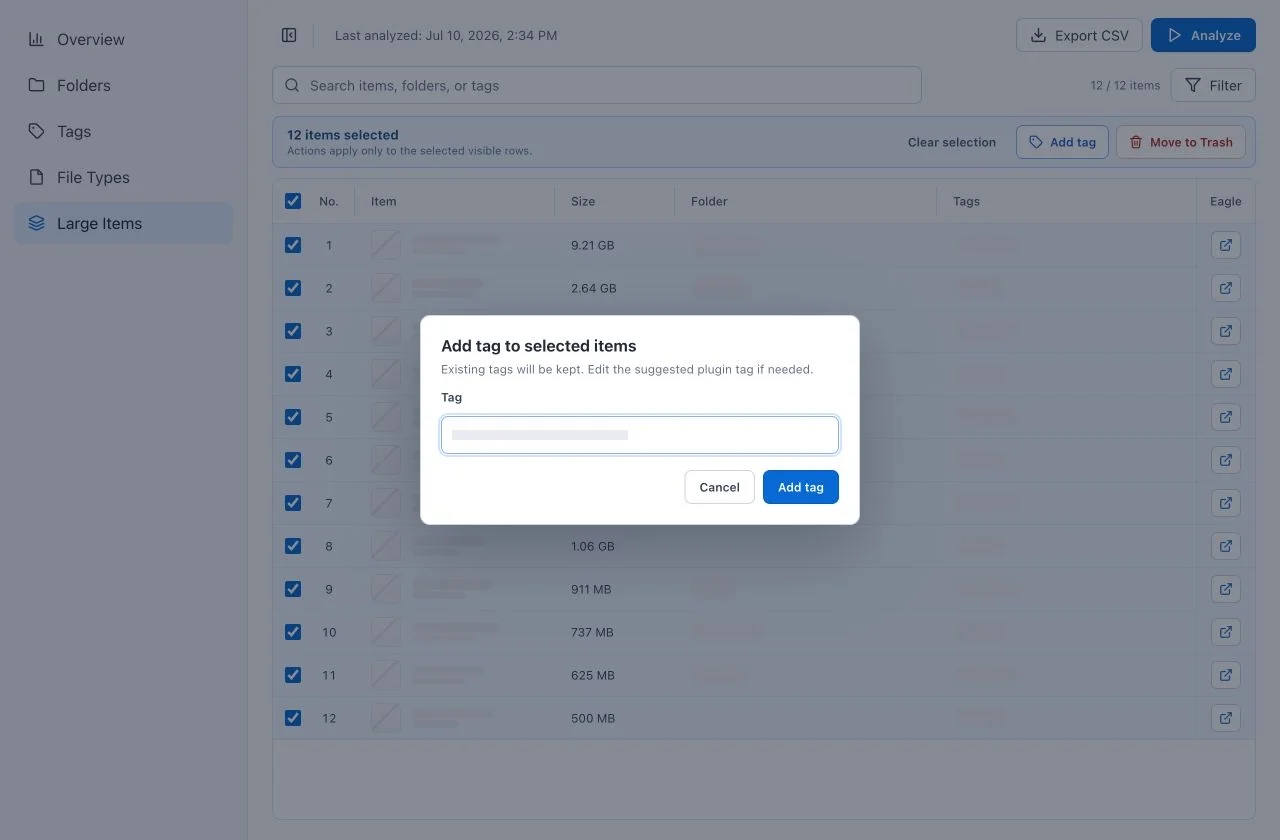
Add a Tag
- Select the rows you want to update.
- Click “Add tag.”
- Review or edit the tag.
- Click “Add tag” in the dialog.
Existing tags are preserved. Items that already have the entered tag are left unchanged.
Move Items to Trash
- Select the rows you want to move.
- Click “Move to Trash.”
- Review the item count and approve the confirmation dialog.
Items are moved to Eagle Trash rather than permanently deleted. No change is made until you approve the confirmation dialog.
Bulk actions apply only to selected rows that remain visible after search, filters, and the Rows setting are applied. Run “Analyze” again after adding tags or moving items to Trash to refresh all summary totals.
- Fixed Overview so hidden table controls no longer affect its results or CSV exports.
- Added a 1 GB+ option to the Minimum Size filter.
You may also like