AI Image Metadata
Copy prompts and seed values saved in PNGs for reuse, right from Eagle. Read models, LoRAs, and generation settings from supported ComfyUI nodes.
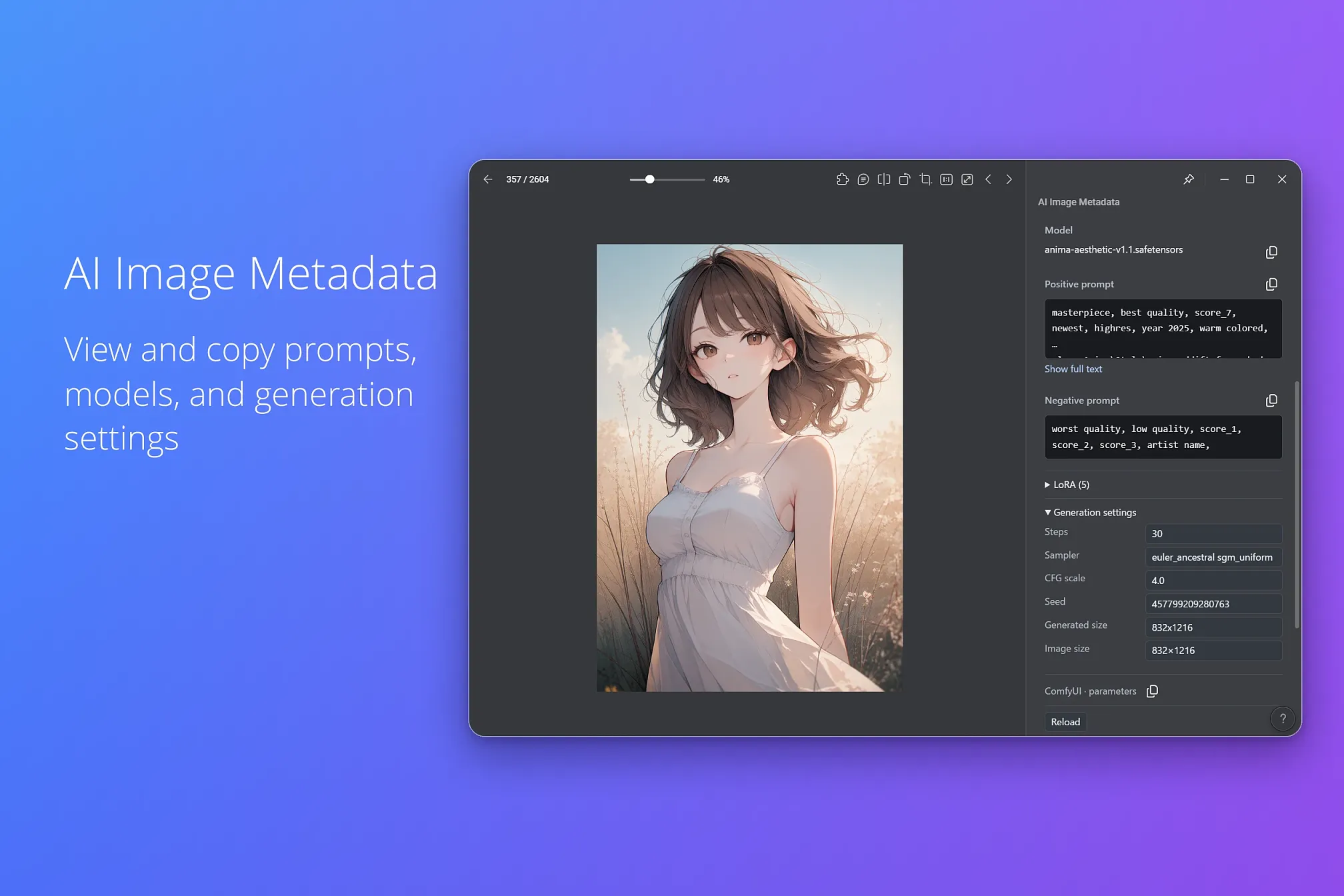
AI Image Metadata lets you view prompts and generation settings saved in PNGs and copy just the information you need. While browsing an image in Eagle, you can copy its full prompt or take only the seed value to paste into your generation tool.
Getting started
1. Install the plugin in Eagle 4.
2. Select one PNG containing generation metadata.
3. Open AI Image Metadata in the right sidebar and press the copy button beside the information you need.
What you can do
- View positive and negative prompts. Copying includes the full text, even when a long prompt is collapsed.
- View and individually copy model names, recorded hashes, LoRAs, Seed, Steps, CFG, and other recorded settings.
- Follow supported ComfyUI node connections to read prompts, models, LoRAs, and generation settings. When a PNG contains multiple supported generation routes, choose which route to view.
- See a compact LoRA name and weight, then copy the tag with its original path, filename, and weight. If model and CLIP strengths differ, one weight cannot represent both, so tag copying is not offered for that LoRA. The same applies when a required strength cannot be read.
- Use Japanese, English, or Simplified Chinese UI based on Eagle's language setting. Recorded content, such as prompts and filenames, is not translated.
Supported metadata and limits
Requires Eagle 4 and a PNG with supported generation metadata. If the PNG contains parameters, the plugin uses that formatted generation information first. Otherwise, it reads saved node connections in ComfyUI PNGs.
Supported nodes include KSampler, KSamplerAdvanced, D2 KSampler, CLIPTextEncode, D2 Prompt, and standard model and LoRA loaders. Not every custom node or dynamic text transformation is supported. When a prompt cannot be determined, the plugin explains that it is unavailable and does not offer it for copying.
The plugin does not display or copy workflows. JPEG, WebP, and NovelAI- or PixAI-specific formats are not supported. It does not guess hashes, assume that LoRA files exist, or search for those files.
Data handling
Images and metadata are processed locally and are not sent to external services. No account, API key, or external service is required. Original images and the Eagle library are not modified. Clipboard writes occur only when you press a copy button.
Initial release. Read prompts, models, LoRAs, and generation settings from PNGs, then view and copy them in Eagle's sidebar. Includes Japanese, English, and Simplified Chinese UI.
You may also like