Font Live Preview
Preview and compare fonts from your Eagle library, system folders, and Google Fonts with custom text.
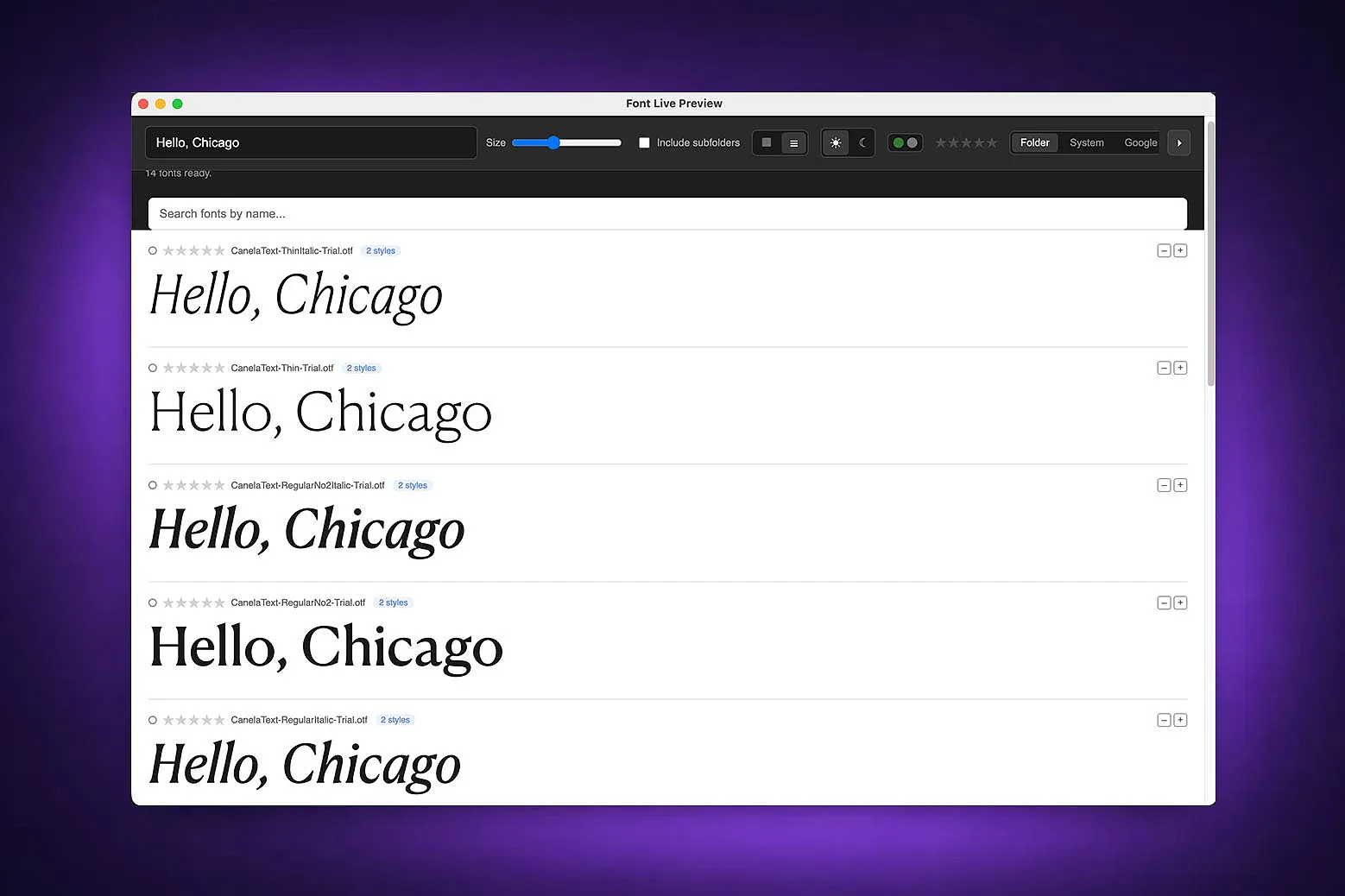
Font Live Preview lets you compare typefaces with your own text inside Eagle.
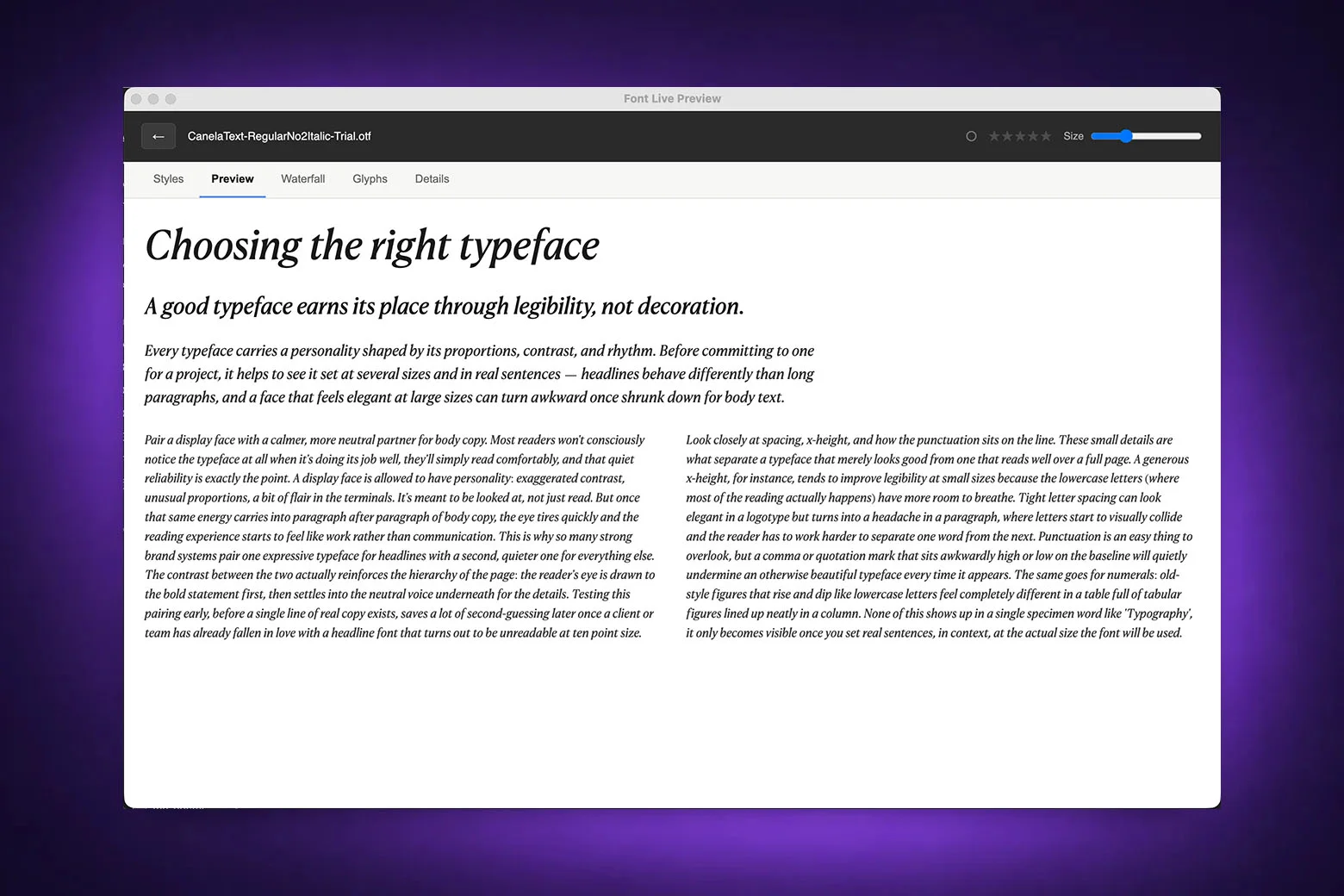
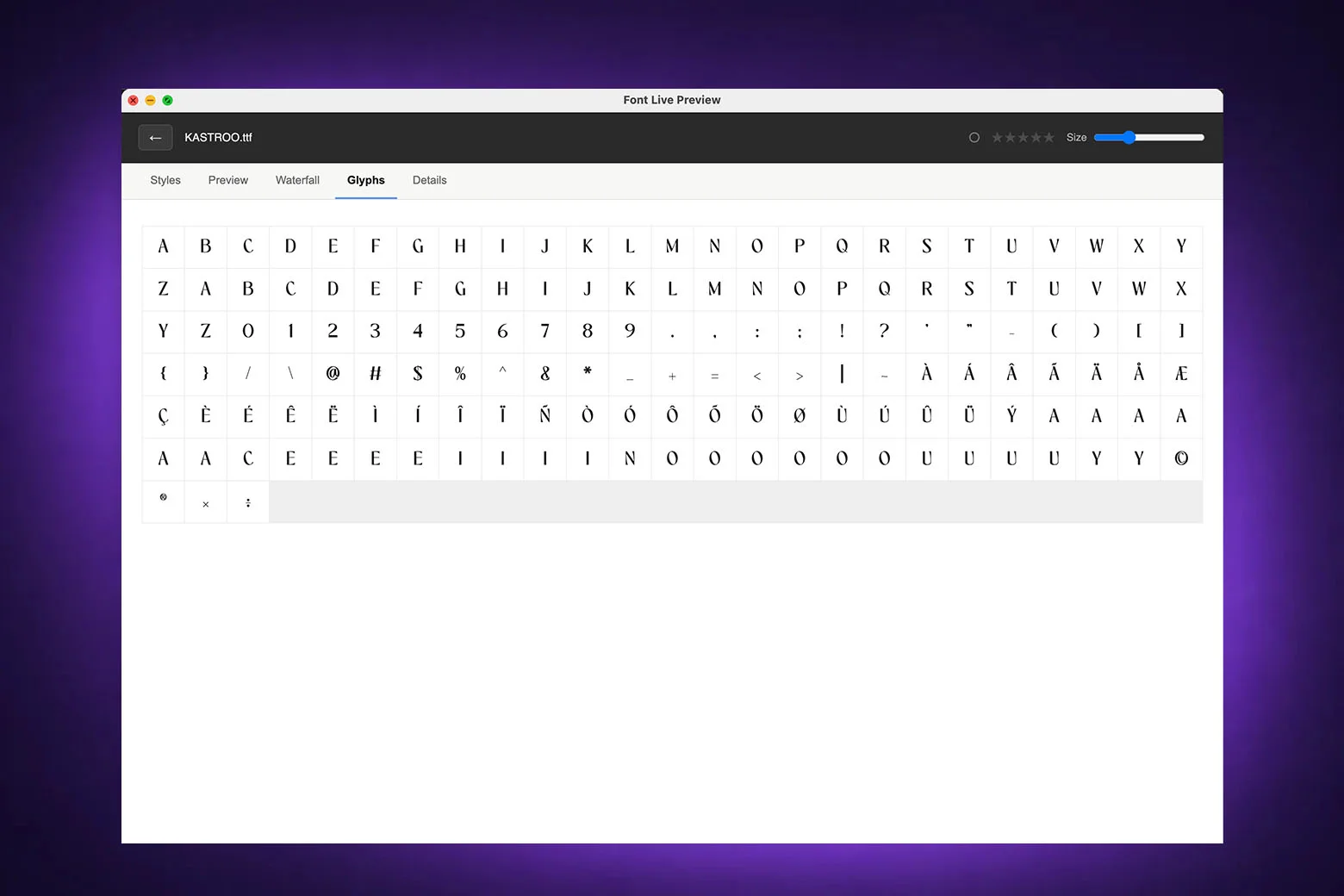
Choose a folder in the Eagle sidebar and open the plugin. Turn on "Include subfolders" when needed; if no sidebar folder is selected, the plugin uses the currently selected items. Folder mode previews TTF, OTF, WOFF, and WOFF2 files. Adjust the size, switch between grid and list views or light and dark backgrounds, and filter by name, activation state, or rating. Open a font to inspect its styles, text preview, size waterfall, glyphs, and embedded metadata.
System mode is available only on macOS and Windows and scans their standard font folders. These fonts can be browsed and rated, but the plugin can deactivate only a TTF or OTF font that it previously activated itself, still has in its installation record, and whose current SHA-256 hash still matches that record. Existing fonts, fonts installed outside the plugin, and fonts in protected system or shared folders are view-only and cannot be deactivated by this plugin. Activating a font never overwrites a same-named destination file. Before deactivation, the plugin asks for confirmation and then moves the font file to a local quarantine folder instead of deleting it permanently.
Google mode requires an internet connection. Opening it or running a search connects to Google Fonts, downloads the first batch of up to 100 matching fonts for preview with up to five concurrent downloads, and caches the files locally. Use "Load more" for additional results.
Ratings for fonts in the Eagle library are saved in Eagle. Ratings for system and Google fonts, activation records, downloaded Google font files, and quarantined fonts are stored as files under your home folder. Uninstalling the plugin does not remove these files automatically; delete them manually if you want to clear them. 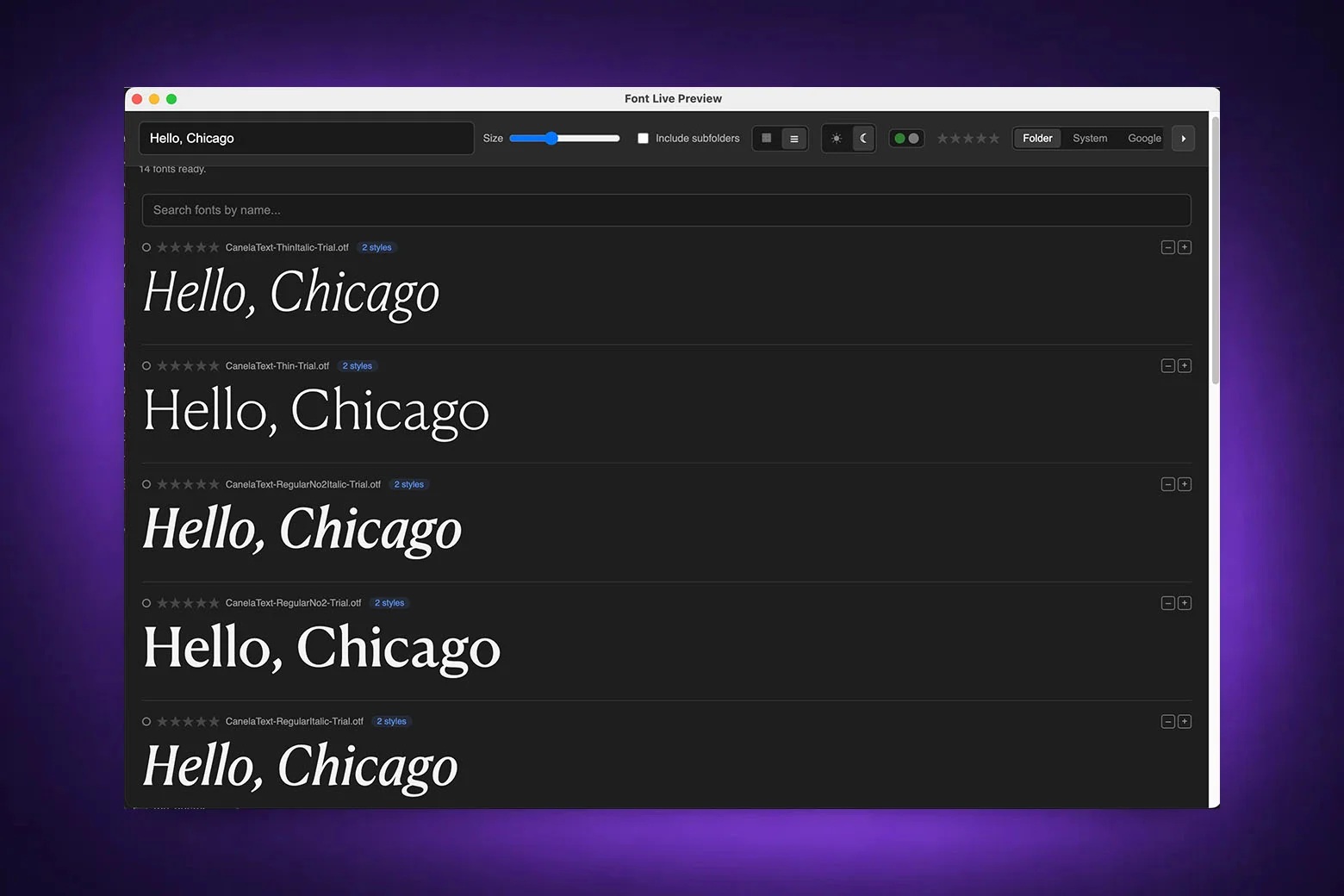
Initial release.
You may also like