Synch Unzipper
A powerful extension that lets you extract compressed files simply and easily — right inside Eagle.
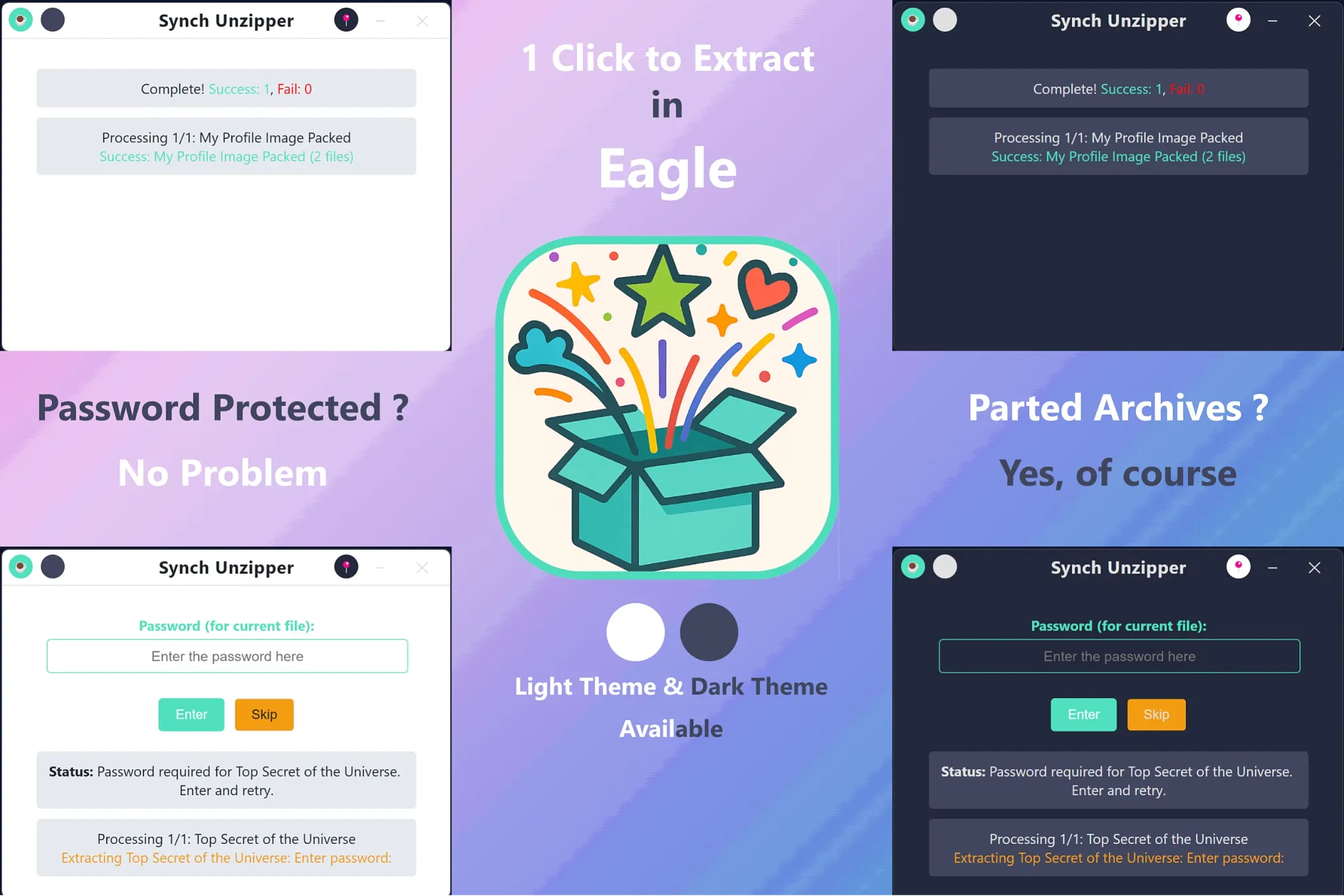

When you bring large folders 📚 into Eagle, sometimes you only discover ZIP, RAR, or 7z archives after they’ve been imported.🫢
Most people, at that point, would need to extract the archive either to see its contents or to use the files. Traditionally, this means moving the archive back to some folder in Explorer, extracting it, and then bringing the contents back into Eagle. Doing this once or twice is fine 😌, but if you have to repeat it dozens of times for hidden archives 😩, it quickly becomes frustrating 😤.
But now, there’s no need for that — because there’s Synch Unzipper!
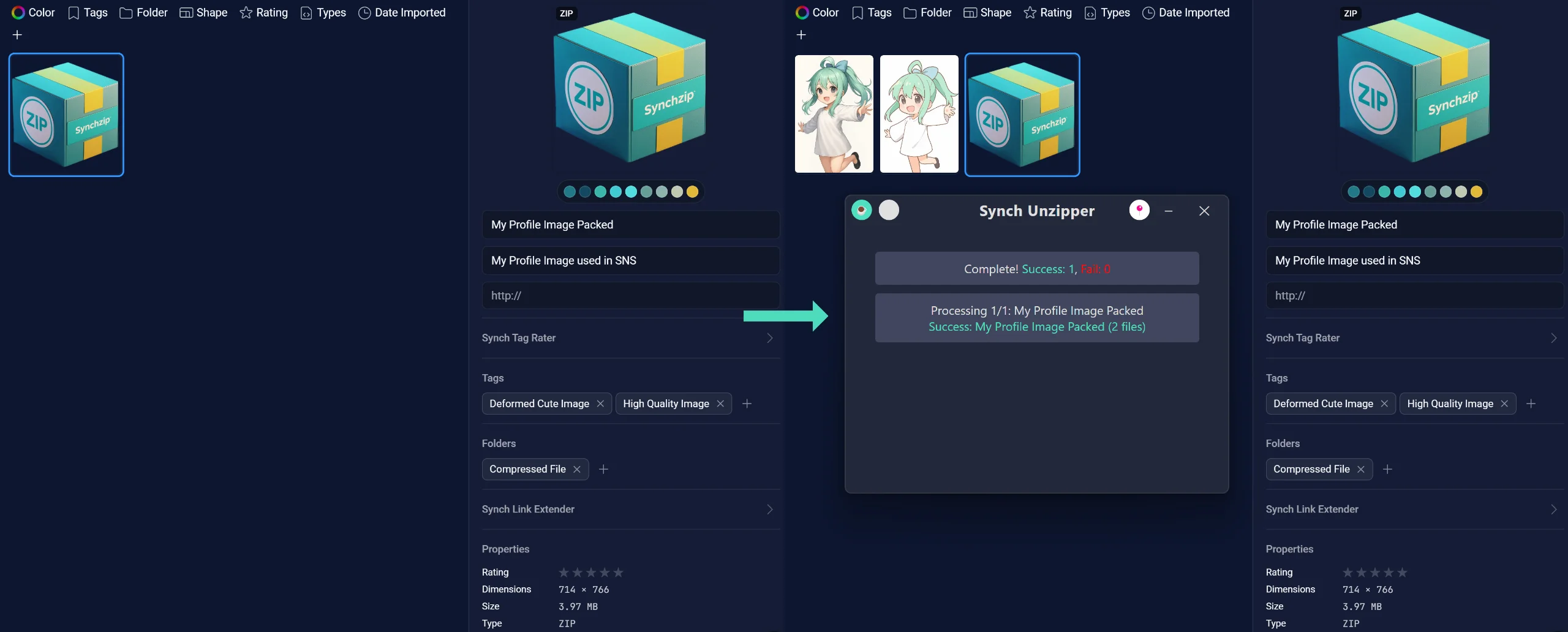
This extension is made for Eagle users who have grown tired of dealing with archives. No more fear, no more hassle. Just select the archive and run Synch Unzipper — that’s it. 👍 One click, and the contents are extracted right where the archive is located. Simple, isn’t it? 😎
No more exporting archives from Eagle to Explorer → extracting → importing the contents back into Eagle. Forget about it.🙂↔️
We’ve all had the experience where the contents of an archive like Archive.rar extract into a folder structure like:
Archive/
   Archive/
      file.jpg
— creating unnecessary nested folders, wasting time and causing confusion.
Or maybe you’ve spent ages searching through a maze of folders after extracting an archive just because someone packed it in a complicated structure.🥴
With Synch Unzipper, that’s a thing of the past. Everything is extracted directly into the folder where the archive resides. Maze-like folder structures? Double empty folders? NO.✋One click, and the contents are ready.👌
Q & A
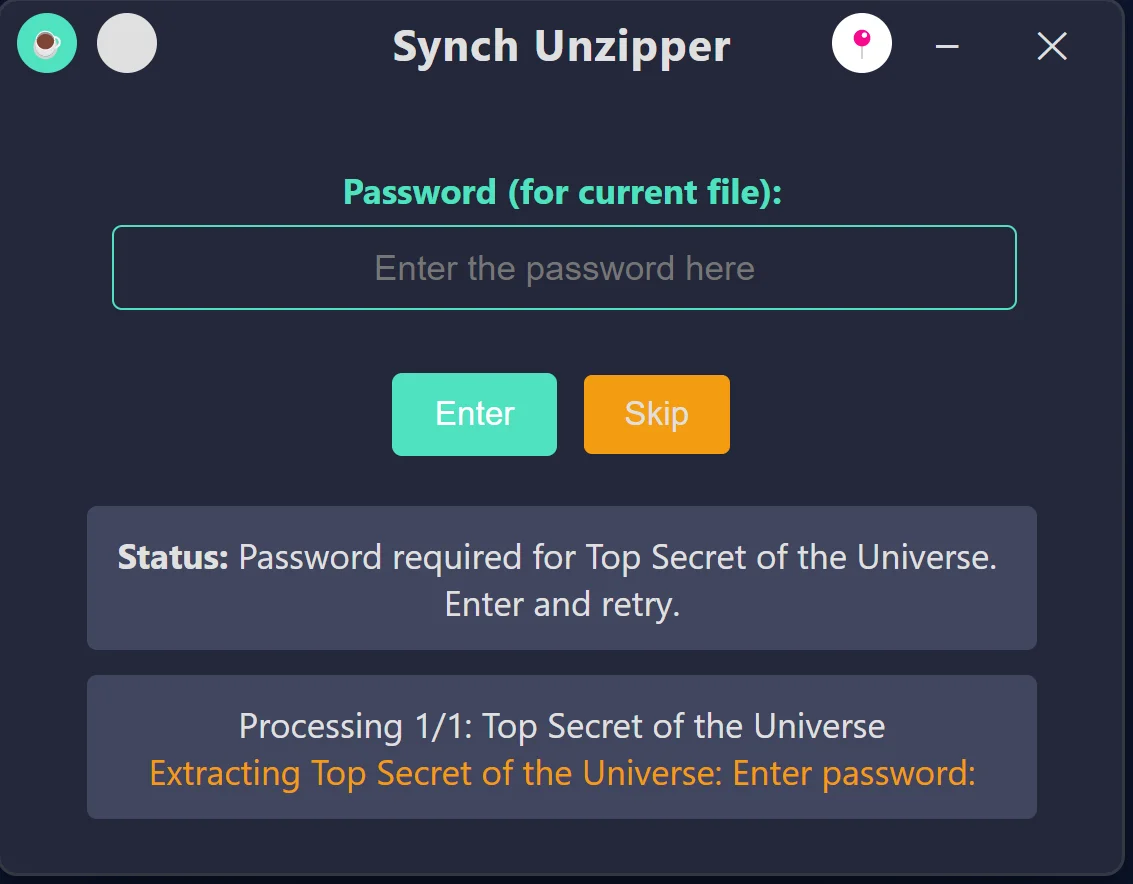
Q: What about password-protected archives?
A: Yes,👌 they’re supported. If the archive is password-protected, you’ll be prompted to enter it. Of course, if you don’t know the password, the archive cannot be extracted… (However things might be different if I ever make a Pro version!🤫)
Q: Can it handle multi-part archives?
A: Yes!👌 Files split into parts like .z01, .z02, .z03 or 7z.001, 7z.002, 7z.003 are fully supported. Important: All parts must be in the same folder inside Eagle, and they should be named correctly just like when you used to unzip in Explorer.
Q: One-click extraction... okay, but is it one click per compressed file? If so, I have hundreds of compressed files sleeping in my Eagle Library, and to extract them, would I have to do that one click hundreds of times? That's not very smart...🤤
A: No,🤚 just select all the compressed files you want to extract, and one click is all it takes!
One file? One click. Hundreds of files? Also one click. Smart, right?😎
Q: What is the coffee button? ☕
A: It's a "Buy me a Coffee" button where you can donate money to support the extension.
Don't worry—clicking that button won't immediately charge you anything. It will simply open my Buy Me a Coffee page at https://buymeacoffee.com/synch where you can choose to make a donation if you'd like.
Q: "Hovering on title bar's button makes a windows appearing that is saying "Status : Lite" what is this ?"
A: It means you are using the Free Lite version. Don't worry, it's absolutely normal. This extension you got from Eagle's plugin center page is the Free, Lite version.
Q: Lite? So there's a Pro version too?"
A: No! This Synch Unzipper doesn't have a Pro version planned yet.
But maybe in the future, a Pro version might be created 🤫 but the Lite version will always be provided for free, FOREVER!
Known Limitations (Important ✅️)
7-Zip must be installed in its default path (https://www.7-zip.org
) All contents are extracted directly from the archive. While this is usually convenient, if the folder structure or specific subfolders are important, you may still want to extract via Explorer first and then import into Eagle. (the classic way what we used to do)
Various bug fixes
You may also like