Layout Studio
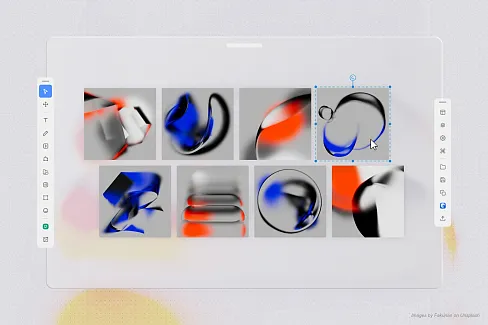
Arrange multiple images into seamless strips, grids, masonry layouts, or storyboards inside Eagle — then export, copy, or save the result back to your library.
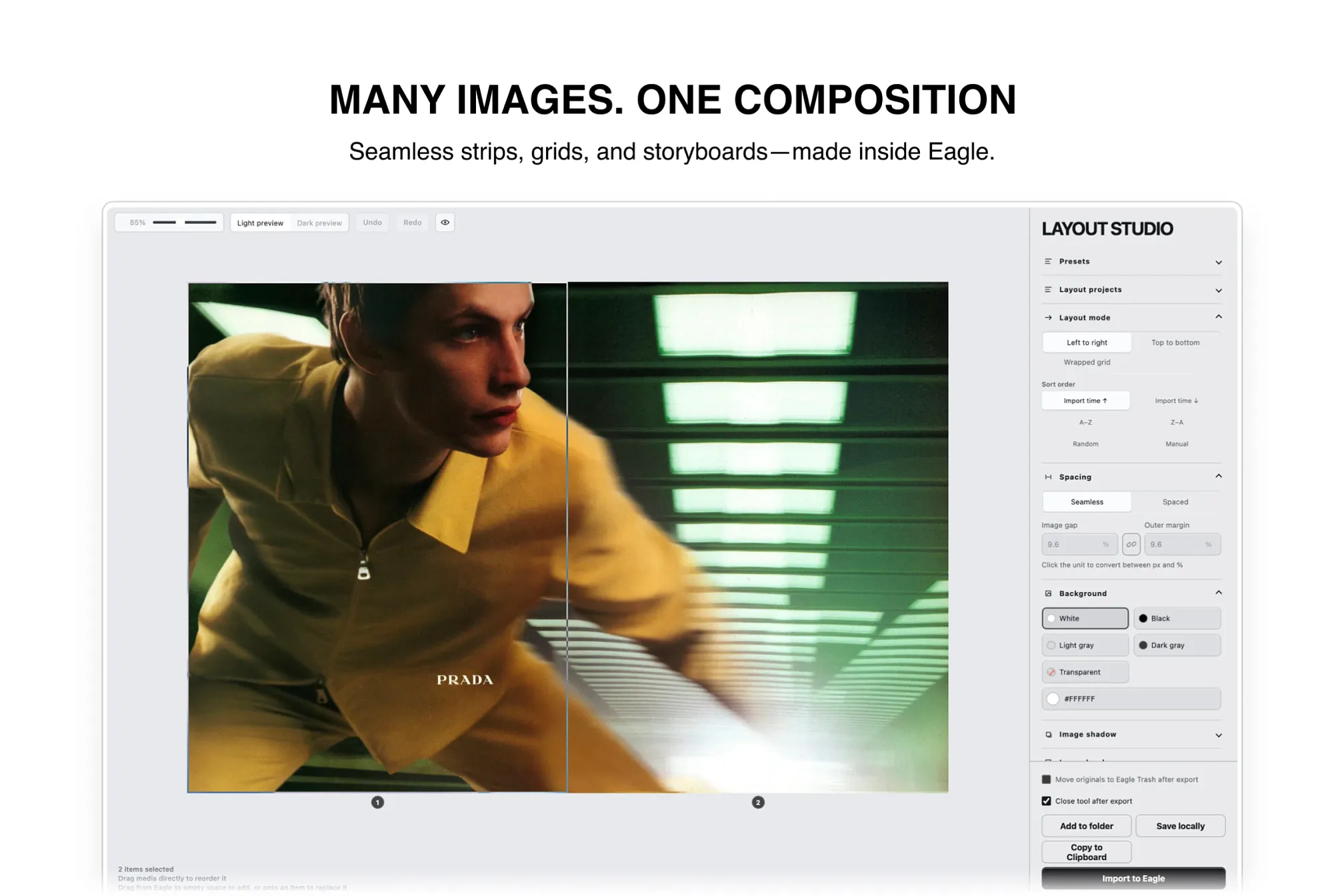
Turn multiple images into one composed frame.
Layout Studio is an image-layout tool that stays inside your Eagle workflow. Start from your current selection and turn images or videos into a shareable composition: rebuild split social posts, make contact sheets, moodboards, and storyboards, or drag more media in from Eagle or your computer.
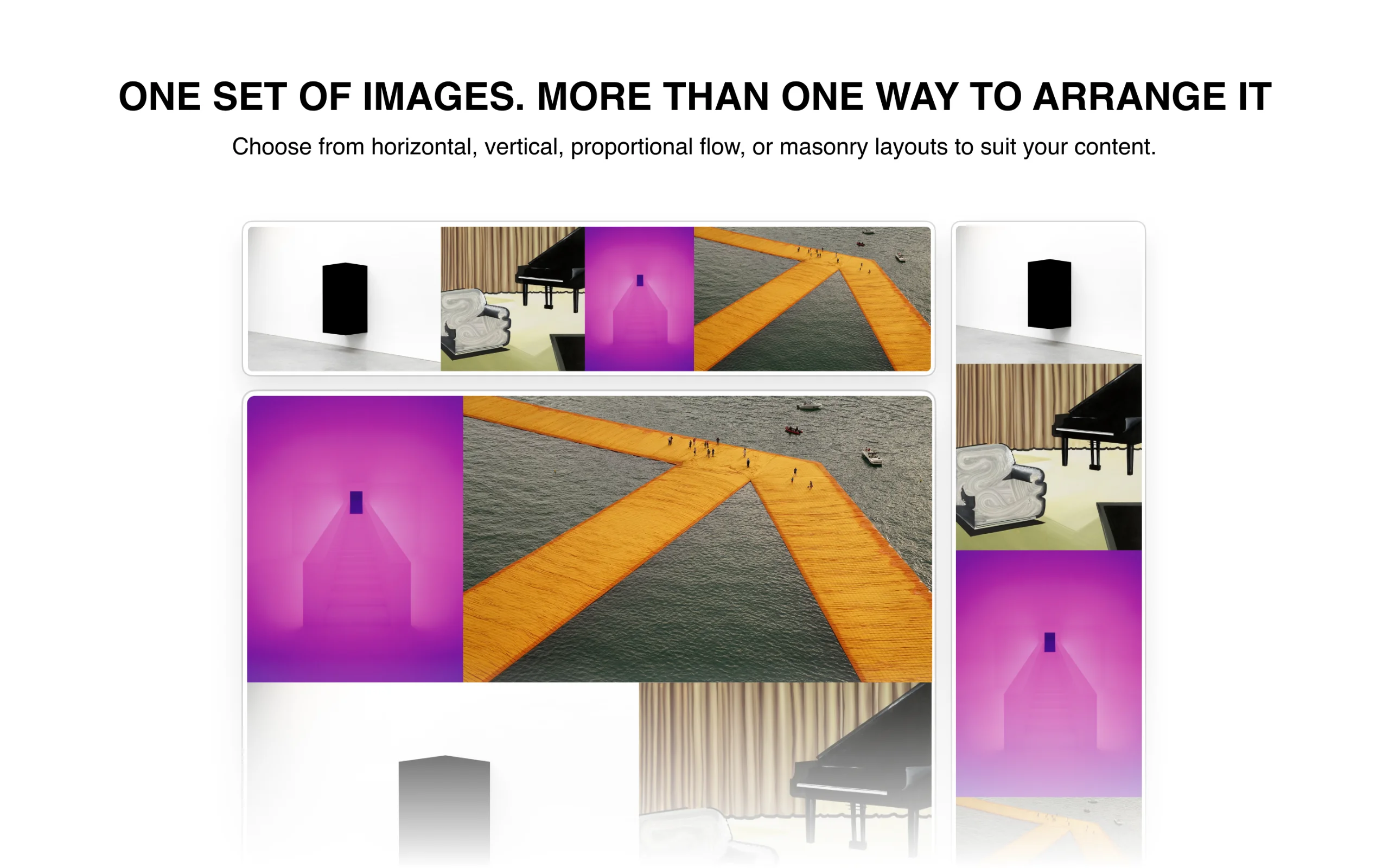
One image set, more than one way to arrange it
Arrange media in horizontal or vertical strips, fixed grids, ratio-preserving flow grids, or masonry. Drag to reorder, drop into empty space to add, or onto existing media to replace. Save recurring settings as presets, and save a complete combination of media and layout as a thumbnail-backed Layout project to reopen and edit later.
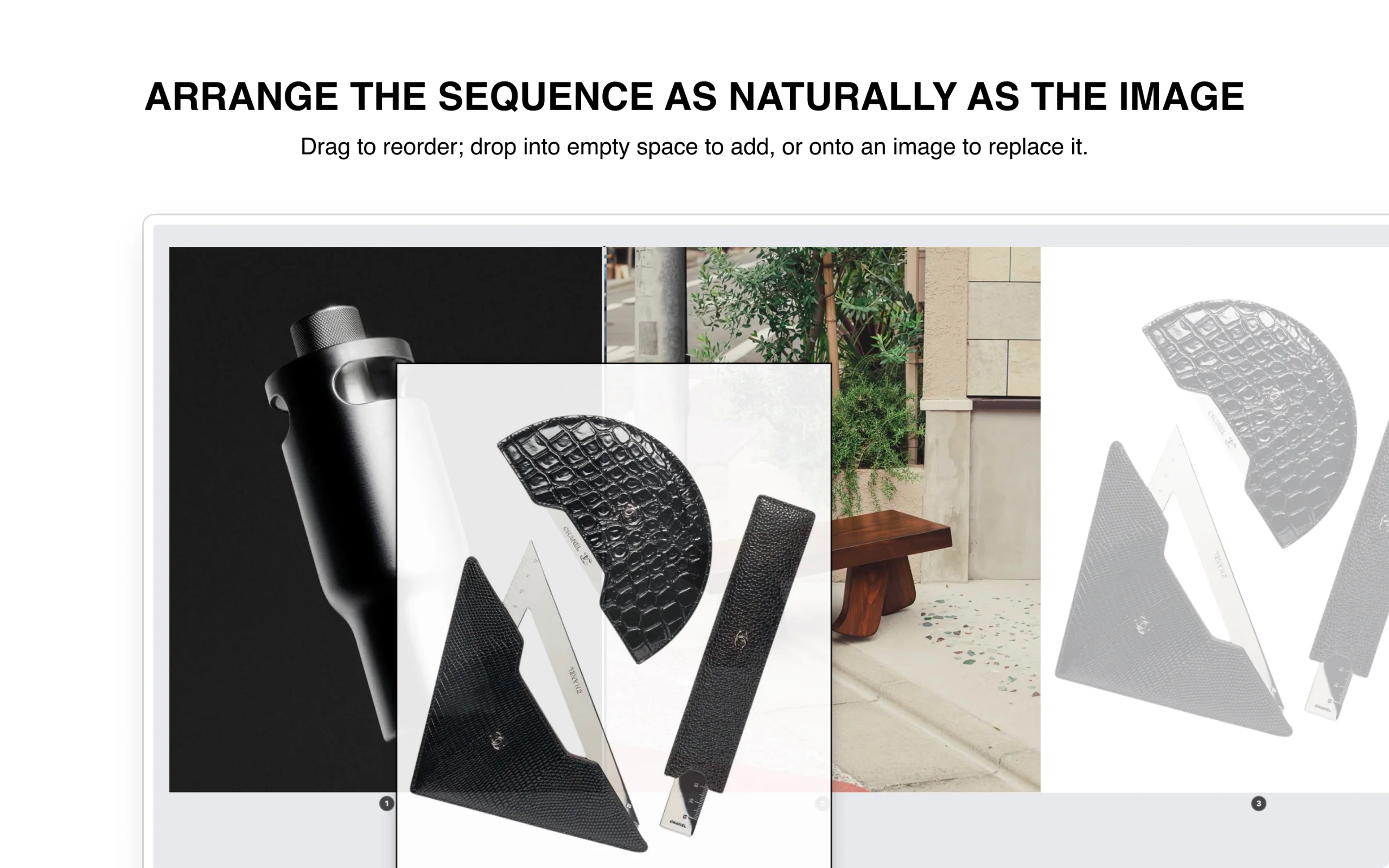
Organize order as directly as you organize images
Drag images directly to reorder them. Drop from your Eagle library into empty space to add an image, or onto an existing image to replace it. You can also scale or remove individual images, and use Undo and Redo to explore alternatives freely.
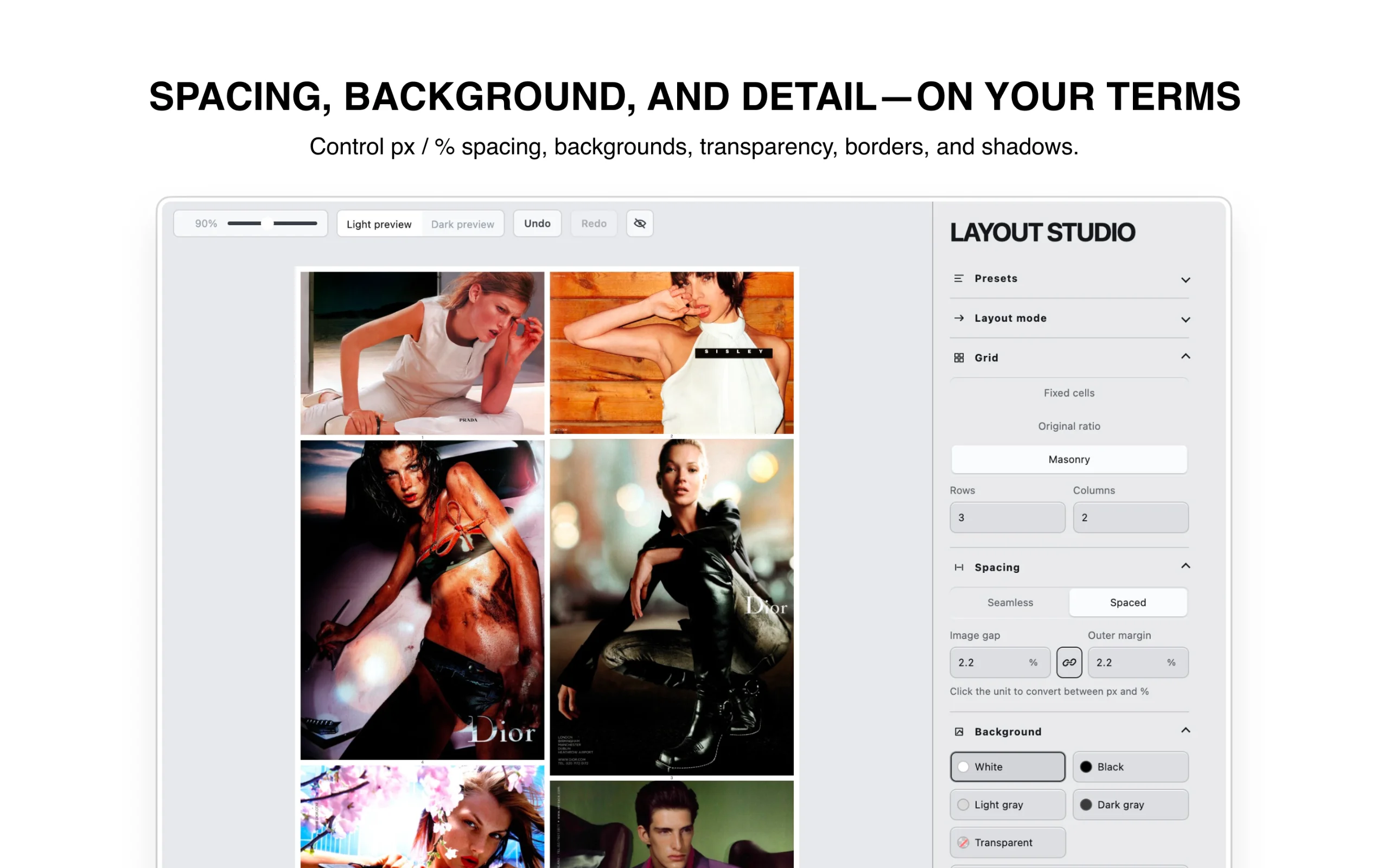
Control the space, background, and finishing details
Set image gaps and outer margins in px or %, choose white, black, light gray, dark gray, custom, or transparent backgrounds, and add borders, shadows, names, or order numbers. Videos use static thumbnails in the layout; select a video to preview it muted and looped in place. Exports remain static.
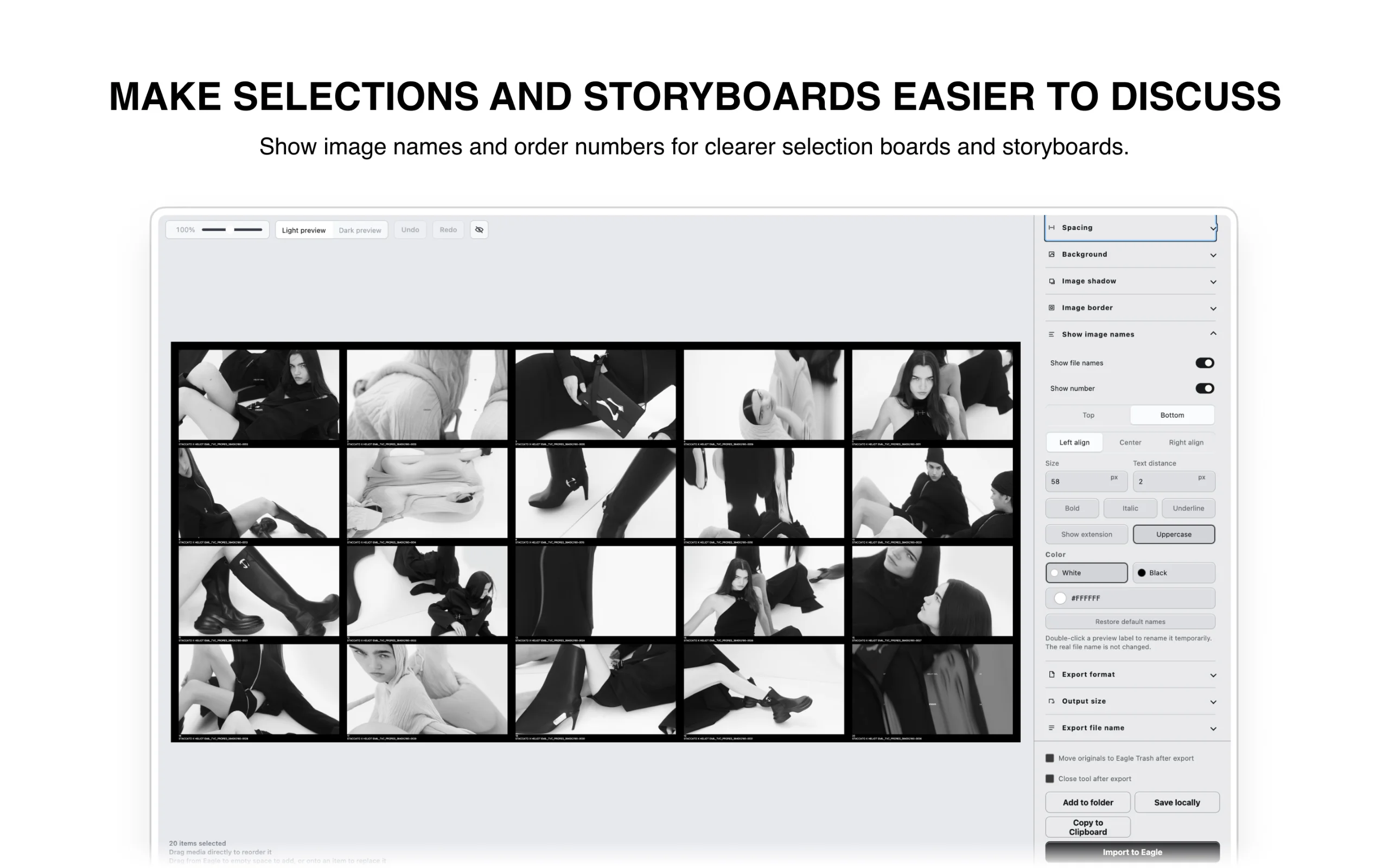
Make image selection and storyboards easier to discuss
Show image names and order numbers, and freely set their position, alignment, size, style, and color. It is especially useful for discussing shot order, confirming selections, or organizing references.
Export WebP, JPG, PNG, or PDF; set output by ratio or long edge; and preview final dimensions and estimated file size in real time. Save locally, copy to the clipboard, or import back to Eagle.
On import, the first image source in the composition becomes the new item source, and every original source link is preserved in visual order in the annotation.
Original items remain untouched by default. Only after you enable “Move originals to Eagle Trash after export” and a local save or Eagle import succeeds does Layout Studio show the affected-item count and ask for final confirmation. Confirmed items move to Eagle Trash, not permanent deletion, and can be restored at any time.
Initial release
- Arrange images horizontally, vertically, in fixed grids, in rows at their original aspect ratios, or in masonry layouts.
- Drag to reorder, add, replace, or remove items; scale individual images; and undo or redo changes.
- Arrange video thumbnails and preview selected videos in a muted loop. Exports remain static.
- Customize spacing, margins, backgrounds, borders, shadows, item names, and numbers.
- Save presets and Layout projects with thumbnails to continue editing later.
- Export as WebP, JPG, PNG, or PDF; save locally, copy to the clipboard, or import into Eagle and choose a destination folder.
- Preserve source links when importing the result into Eagle.
- Confirm before deleting or overwriting presets and Layout projects, with local data backups retained.
- Confirm the final file path before overwriting a local export; existing files remain unchanged if canceled.
- Original items remain unchanged by default. Optionally move them to the Eagle Trash after a successful export and final confirmation.
- Available in Simplified Chinese, Traditional Chinese, and English.
You may also like