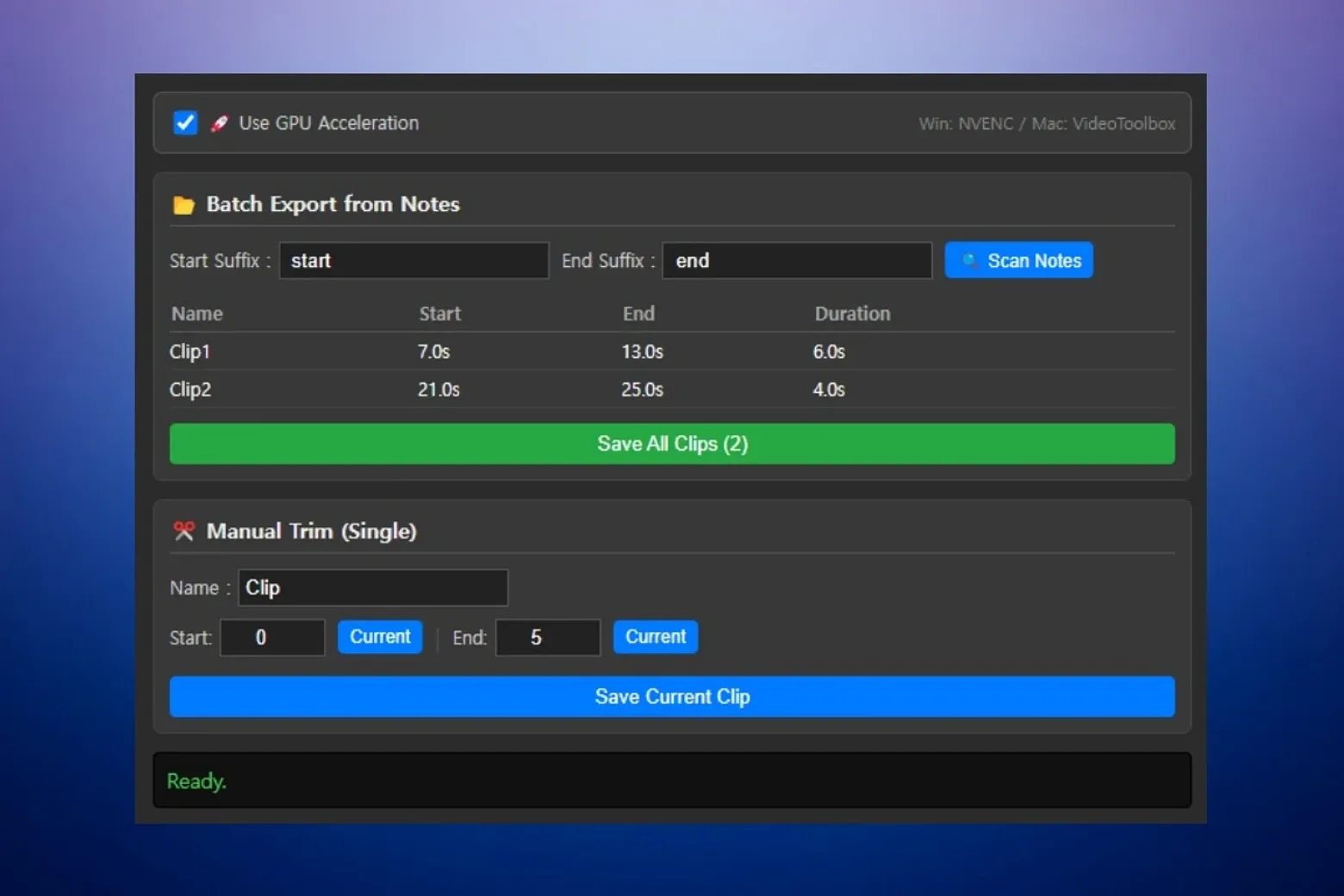
An Eagle plugin that empowers you to efficiently create video clips. Its standout feature is "batch clipping based on notes", allowing you to define and export multiple clips simultaneously using timestamped comments.
--- FEATURES ---
- Batch Export from NotesAutomatically scans video notes (comments) for start/end markers to generate multiple clips at once.
Precisely select a specific range manually and save it as a new clip.
Generated clips are automatically imported back into your Eagle library, preserving tags and folders.
This plugin utilizes FFmpeg for video processing. If it's not detected, the plugin will prompt you to install the Eagle FFmpeg Extra Module automatically.
--- HOW TO USE ---
A. Batch Clipping (from Notes)
This is the recommended workflow for extracting multiple clips from a single video.- Start point: Type a name followed by the start suffix (default: " start").
Example: "Clip1 start"
- End point: Type the same name followed by the end suffix (default: " end").
Example: "Clip1 end"
2. Open Plugin: Click the plugin icon in the Eagle inspector.
3. Scan: Click the "Scan Notes" button. The plugin will detect all matching start/end pairs.
4. Export: Click "Save All Clips". The plugin will process each section and save them as new video files in your library.
Note: You can customize the "start" and "end" suffixes in the plugin interface (e.g., change them to "_begin", "_stop", etc.).
B. Manual Trimming (Single Mode)
Quickly cut a single portion of a video.1. Open the plugin with a video selected.
2. Set Start: Pause the video at the desired start time and click the "Current" button next to the "Start" field.
3. Set End: Pause at the end time and click "Current" next to the "End" field.
4. Name & Save: Enter a file name and click "Save Current Clip".
--- SETTINGS ---
- Use GPU Acceleration:Enable this for faster rendering.
* Windows: Uses h264_nvenc (Requires NVIDIA Graphics Card).
* macOS: Uses h264_videotoolbox.
* Troubleshooting: If you encounter errors during export, try disabling this option to use the default CPU encoder (libx264).
--- SUPPORTED FORMATS ---
Supports common video formats including: mp4, mov, avi, mkv, webm, wmv.v1.0.2
2026-02-06
Changed notes search logic
You may also like