Clip
Collect all kinds of web inspiration and extend Eagle into a versatile reader for text, audio, video, and more. Supports text-to-speech, translation, highlighting, and other features. Optimized for X, Spotify, and YouTube.
Enable the plugin
Find the “Clip” plugin in the Eagle Plugin Center and install it.
Collect web inspiration (Clip)
To collect inspiration from websites, you need to install the “Clip for Eagle” extension in the Chrome browser.
After installation, open a webpage, click the “Clip for Eagle” extension, and then click the “Clip” button to save it to Eagle.
(Eagle must remain open while saving.)
Items saved to Eagle will be stored as the “.clip” type.
Special optimizations are available for the following websites:
-
X (Twitter)
-
YouTube
-
Spotify
-
Xiaoyuzhou Podcast
Using the Clip plugin
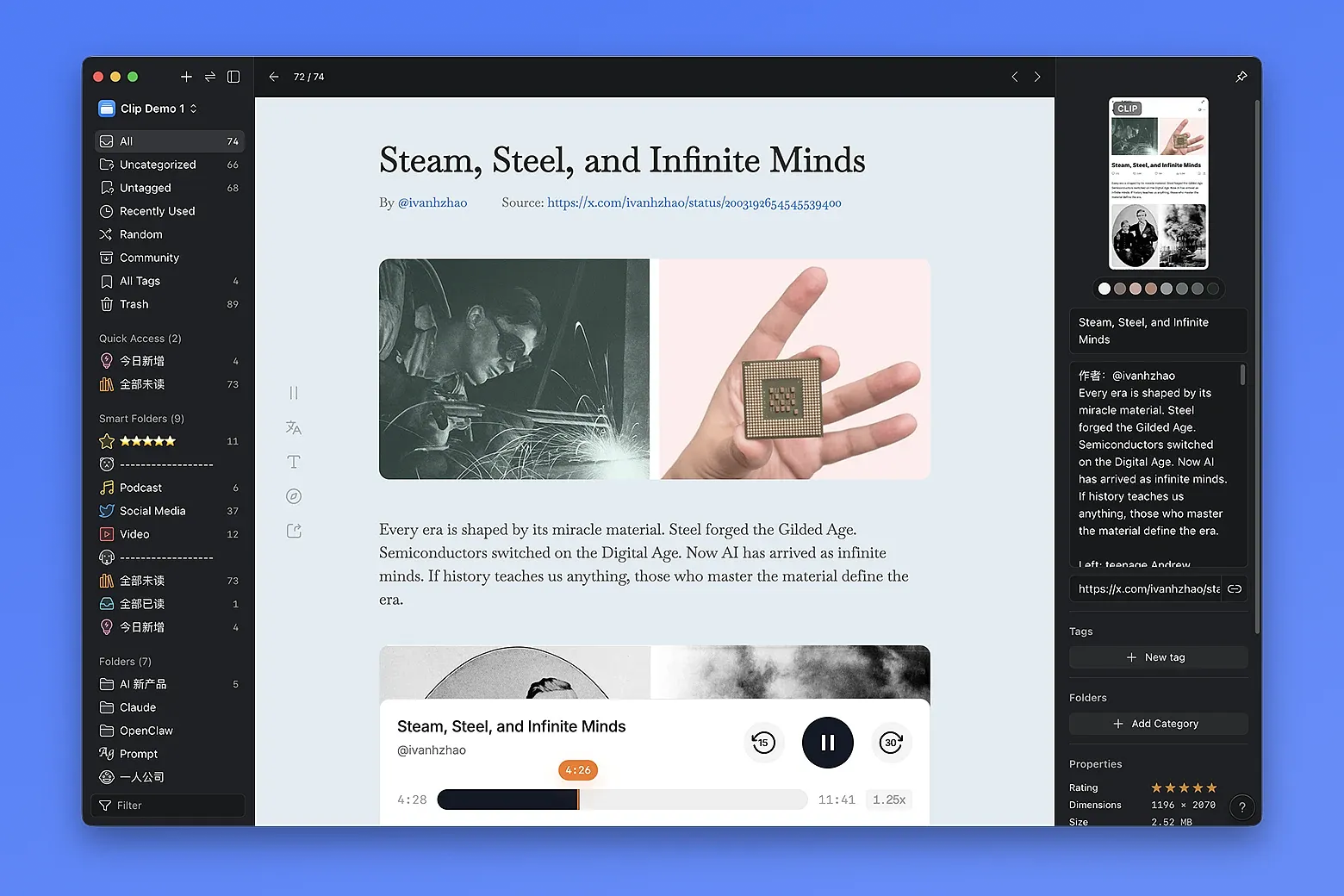
In Eagle, double-click a “.clip” item to open it in Clip.
On the Clip detail page, the toolbar is located on the left side and provides the following features:
-
Read aloud: Supports reading text aloud; on audio/video Clip detail pages, it controls play/pause for the player
-
Translate text: Supports translation into the target language, including immersive translation
-
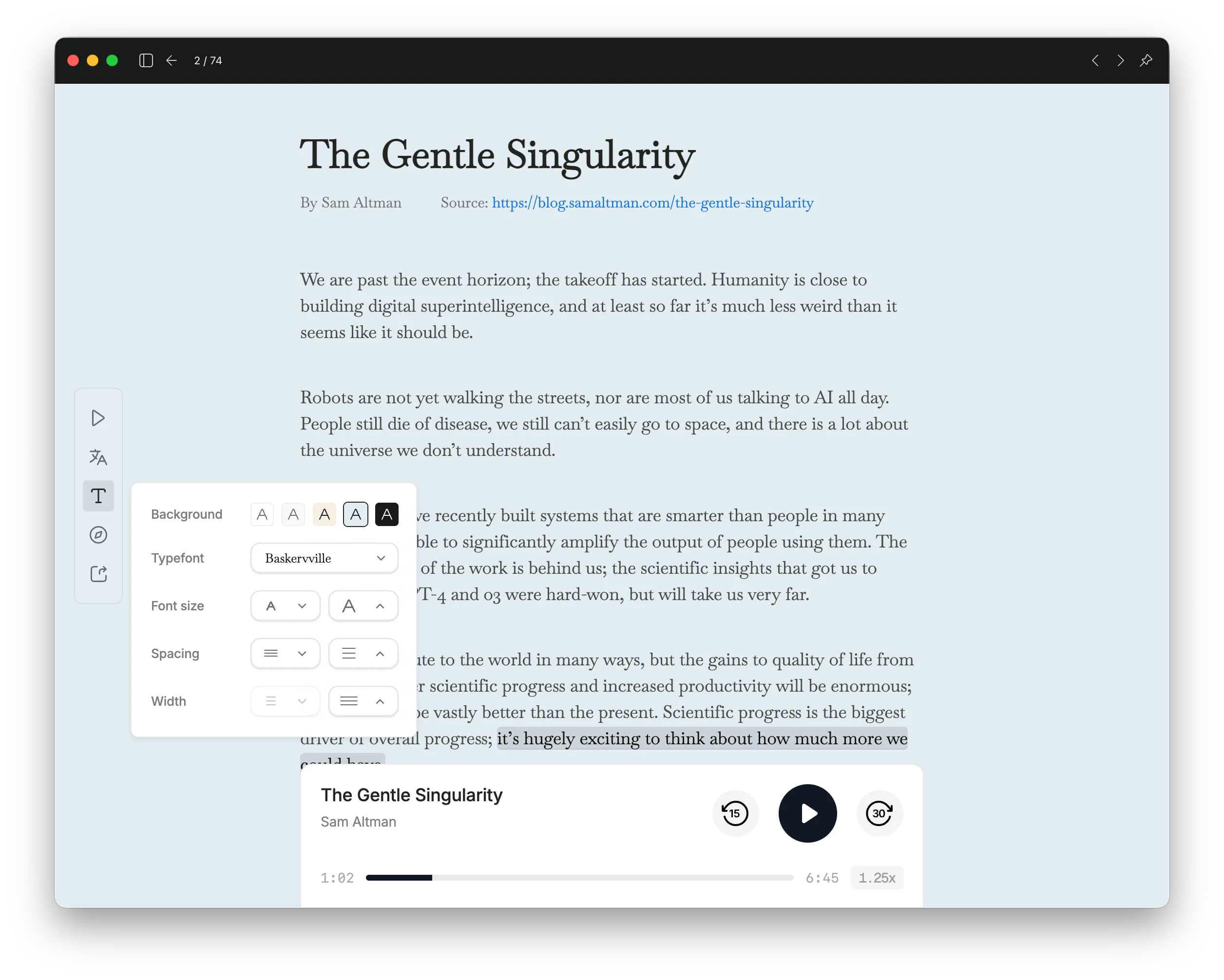
Layout style: Supports adjusting the background color, font, font size, line spacing, and left/right margins of the Clip detail page
-
View original: Click to open the source webpage
-
Export: Supports copying highlights, copying the link, and copying the full text
X (Twitter)
YouTube
Spotify
Xiaoyuzhou Podcast
Read aloud: Supports reading text aloud; on audio/video Clip detail pages, it controls play/pause for the player
Translate text: Supports translation into the target language, including immersive translation
Layout style: Supports adjusting the background color, font, font size, line spacing, and left/right margins of the Clip detail page
View original: Click to open the source webpage
Export: Supports copying highlights, copying the link, and copying the full text
Highlight text
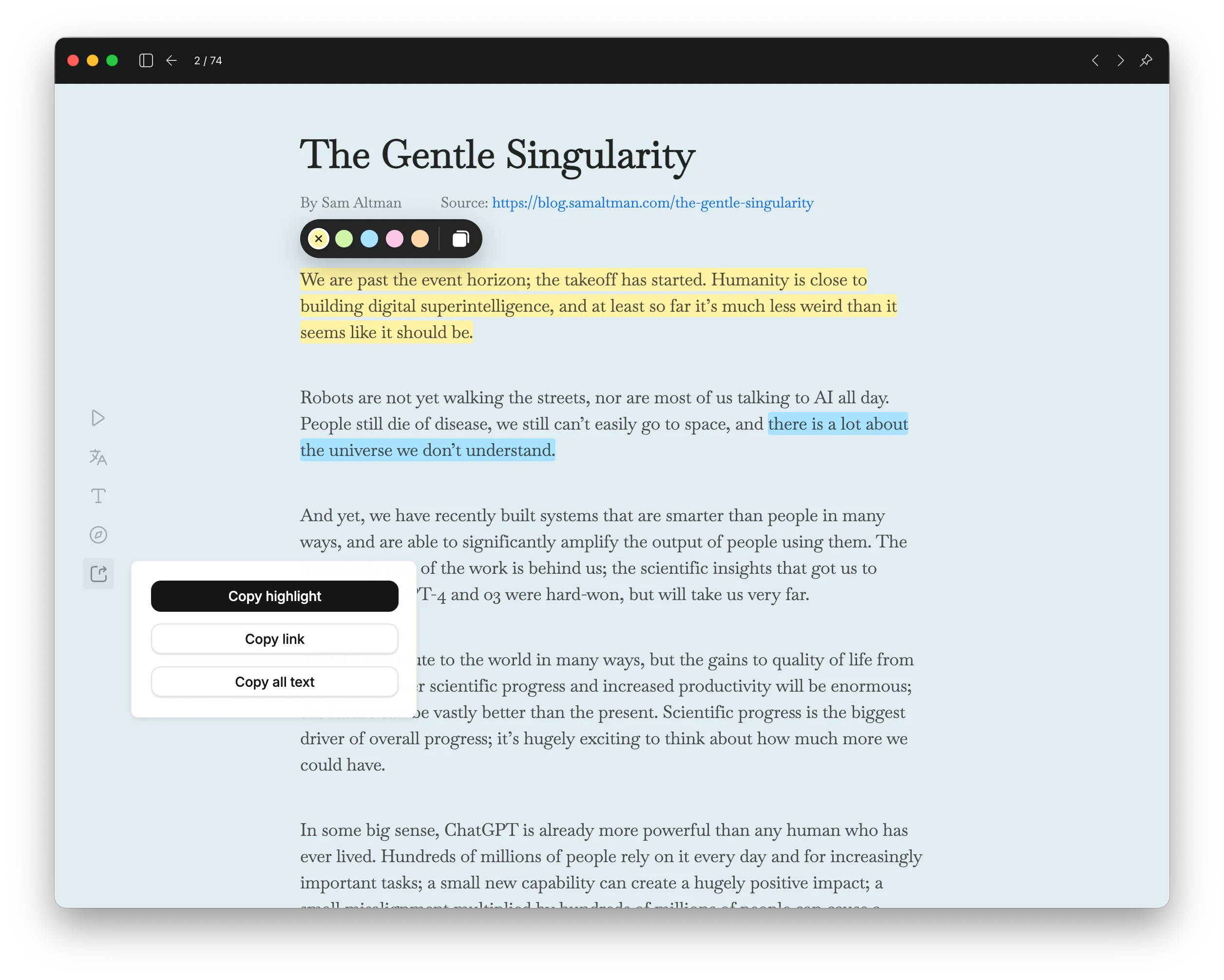
Click and drag over text to highlight it. After highlighting, a highlight toolbar will appear, where you can switch highlight colors and copy the highlighted text.
In the left toolbar, click the “Export” button to copy all highlighted text from the article.
Audio playback
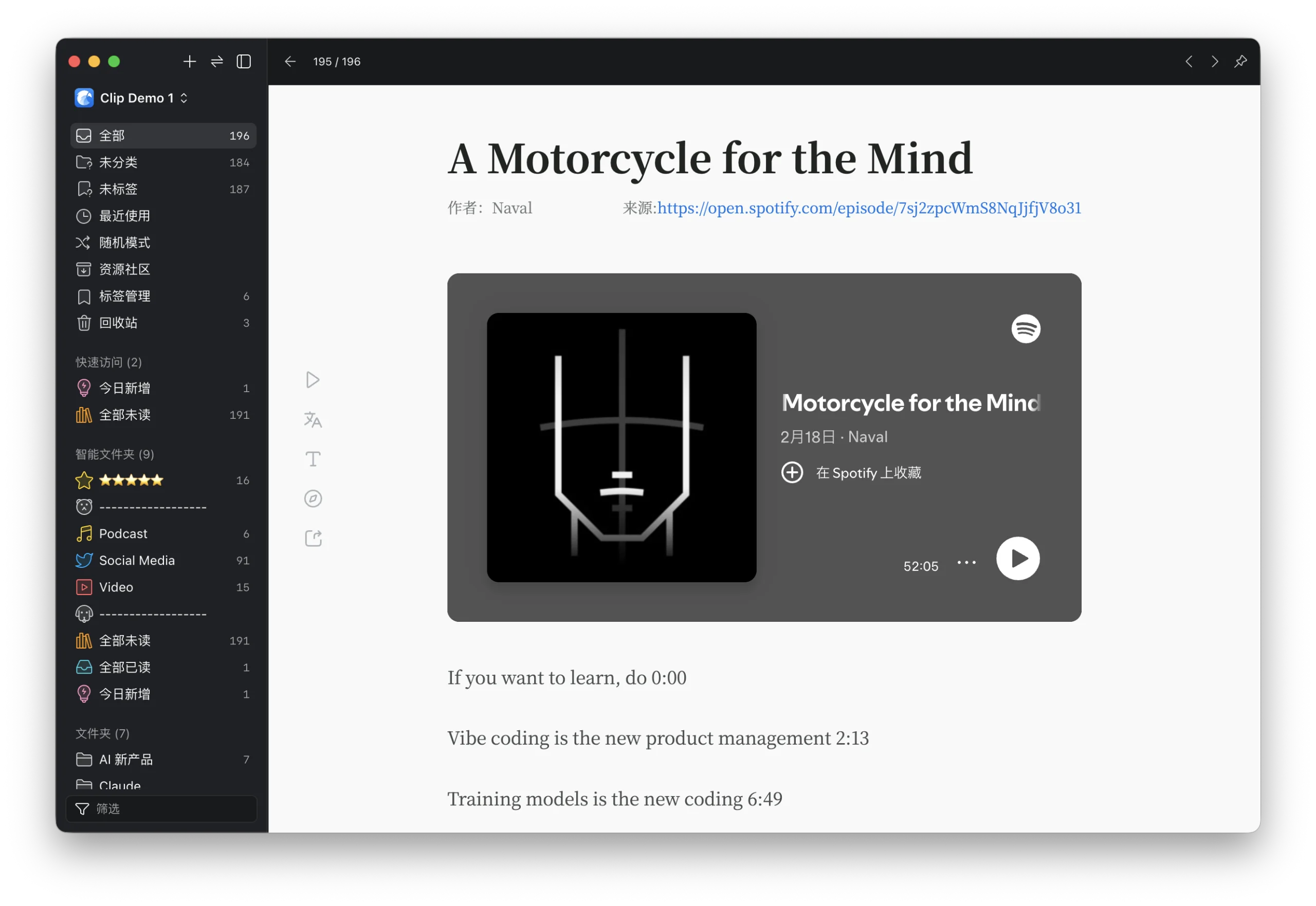
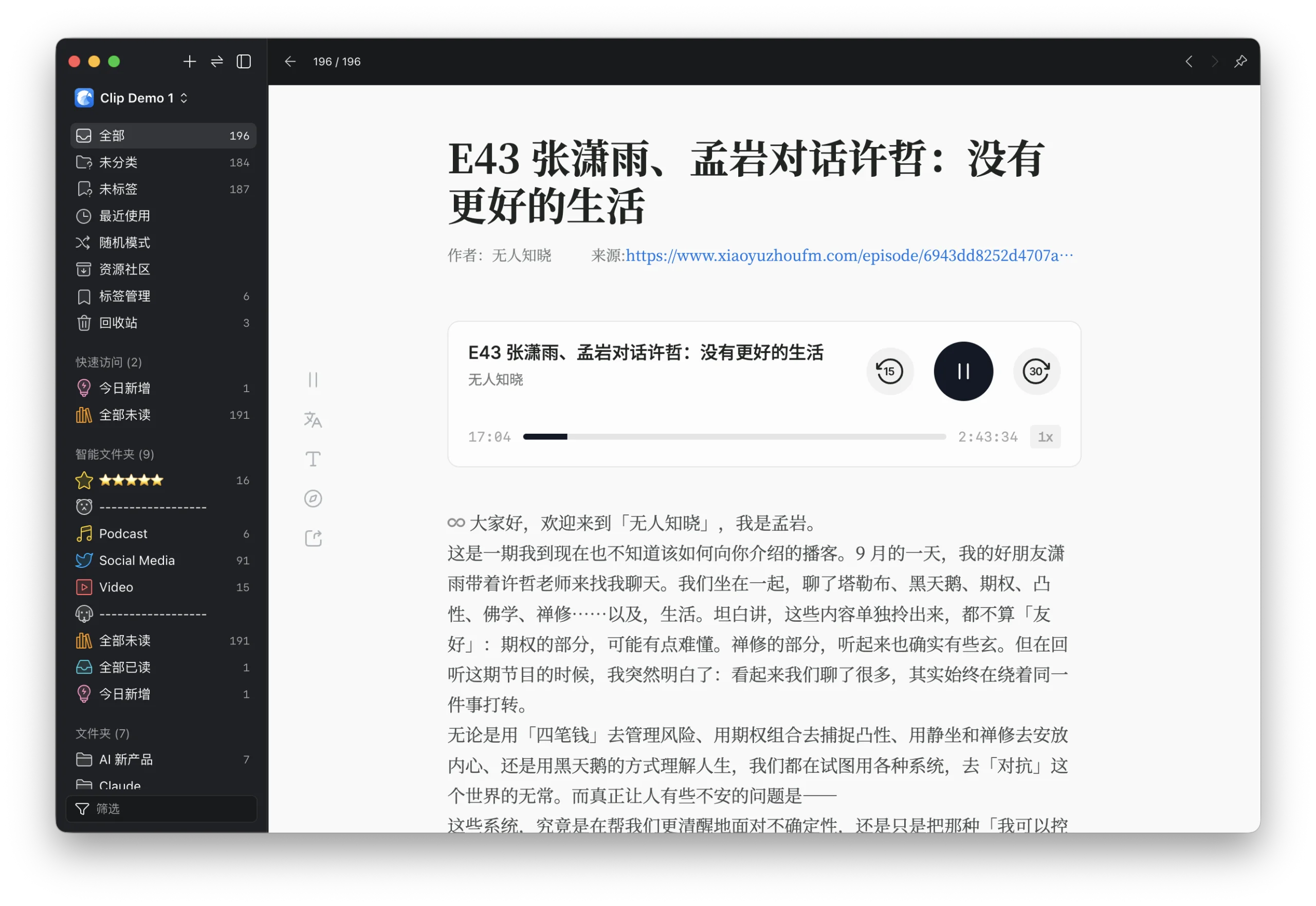
When saving podcast content from Xiaoyuzhou or Spotify, the audio is also fetched, allowing you to listen to the podcast with the audio player in the Eagle details page.
Video playback
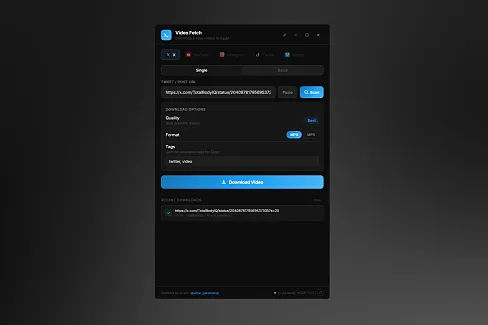
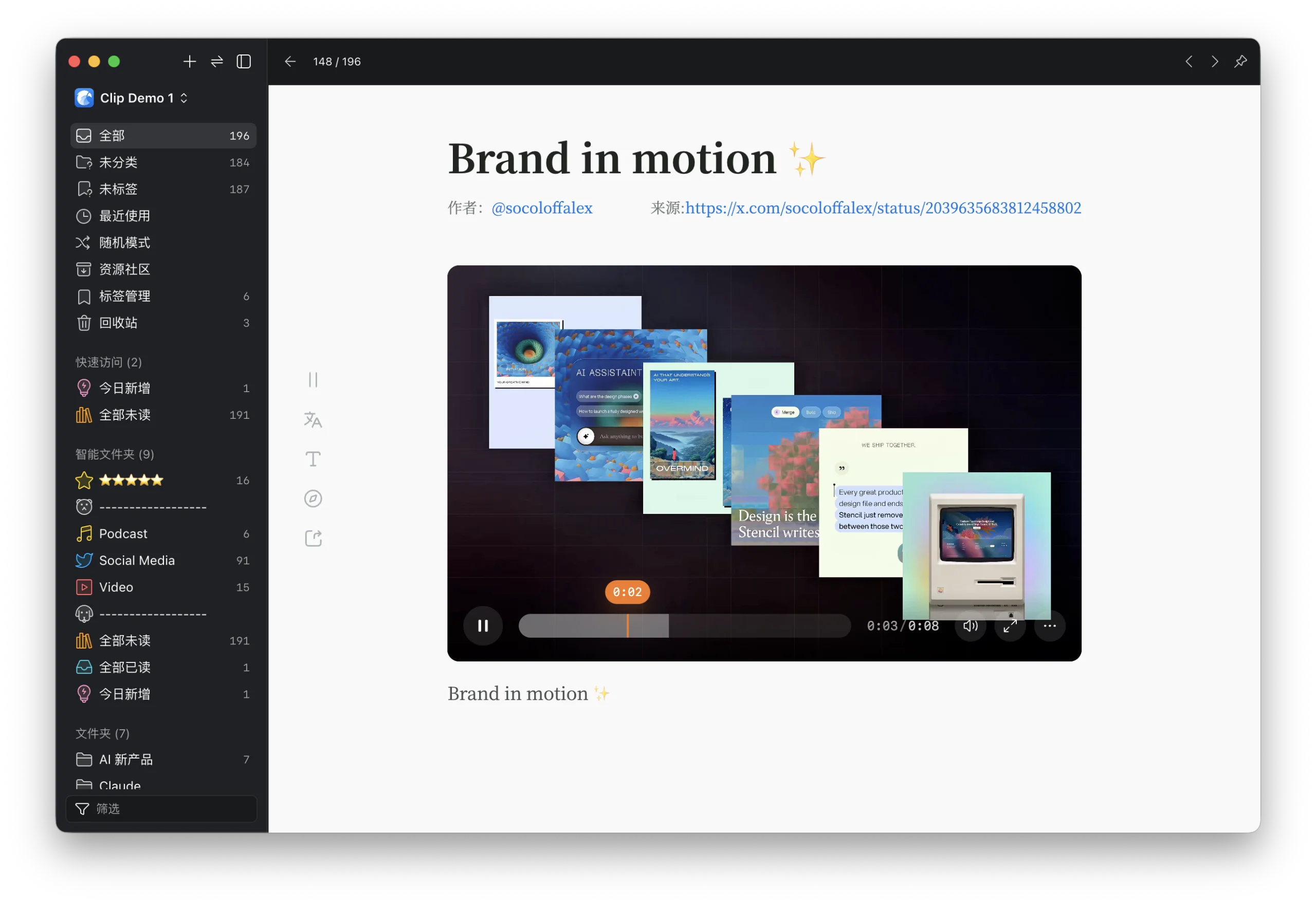
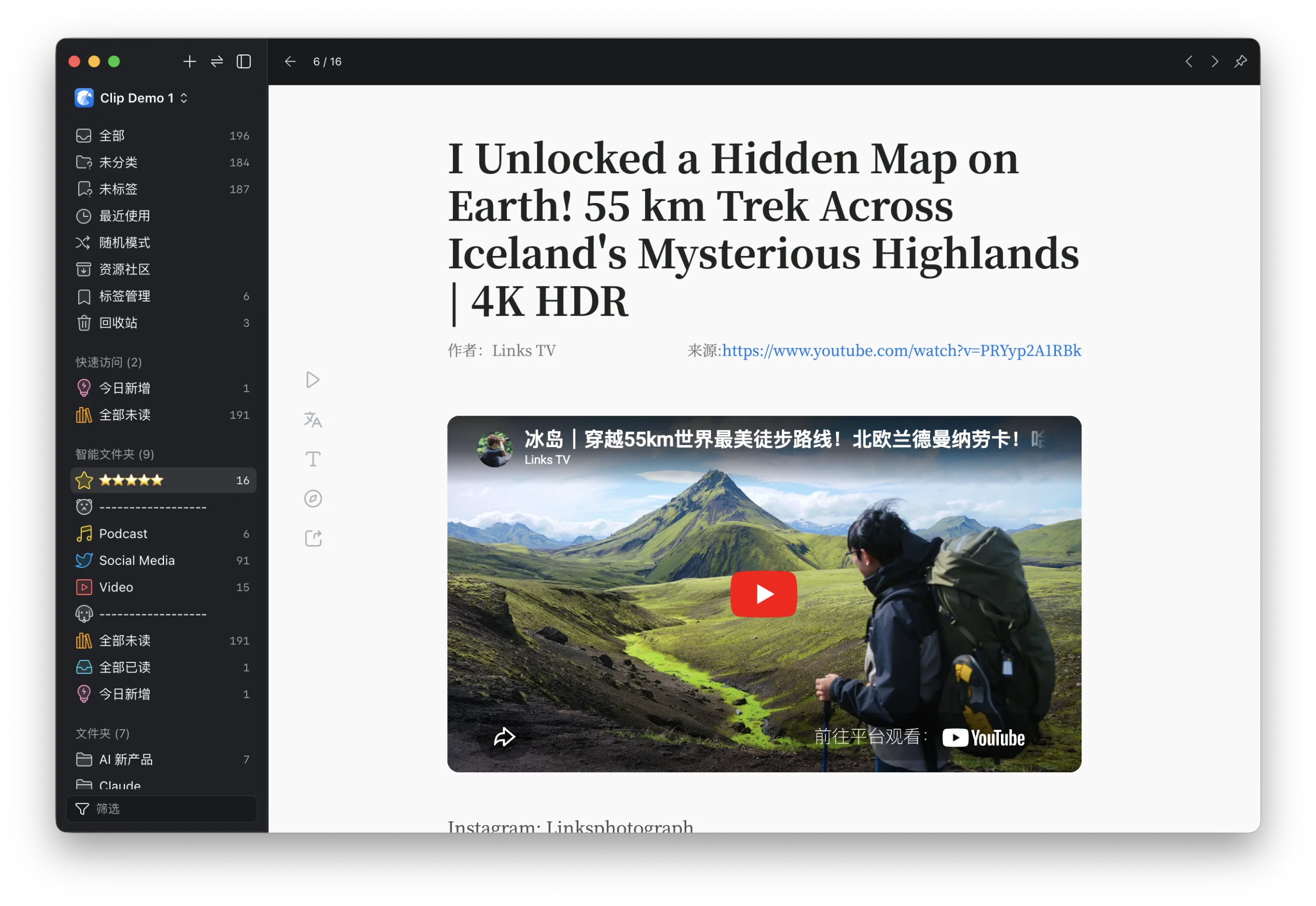
After saving an X post with video or a YouTube video, you can watch the original video in the Eagle details page.
- Improved author and source display
- Updated multimedia files to be saved in the same directory as the Eagle Library
- Added a dismiss action for sticky video players
Fixed icon display issues in the toolbar and player
-
Updated website compatibility
You may also like