Format Converter
Convert HEIC to JPG, compress PNG to WebP, or turn MOV into MP4 — batch-convert files directly in Eagle without leaving your library.
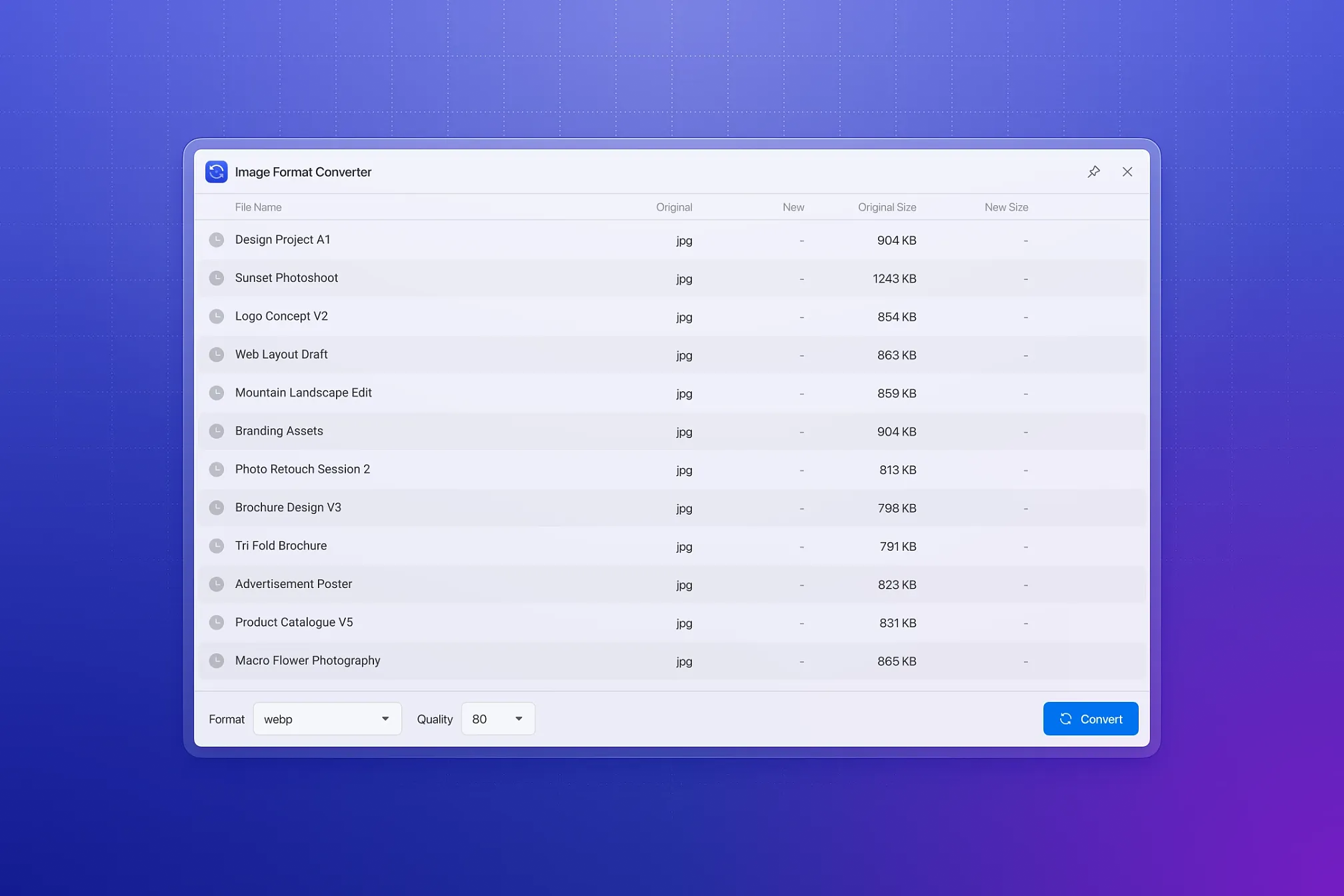
Need to convert a batch of iPhone HEIC photos to JPG, compress a folder of PNGs into WebP or AVIF, or turn MOV and MKV videos into widely compatible MP4 files?
Normally, that
🖱️ Choose a format and convert
Select your files and target format, then start converting. The plugin handles the rest automatically.
No technical knowledge is required, and there’s no need to install or configure any additional conversion software.
🔄 Handle common conversion tasks with ease
- HEIC → JPG: Convert iPhone photos into a widely supported format that’s easy to open, upload, and share
- PNG → WebP / AVIF: Batch-convert images to modern formats and significantly reduce file size
- MOV / MKV → MP4: Convert videos into a widely compatible format for easier playback and sharing
- JXL / DDS / EXR / SVG and other professional formats → common formats: Turn specialized source files into formats your teammates and clients can open directly
📦 Extensive format support
- Input: JPG, PNG, BMP, GIF, TIF, ICO, WebP, AVIF, JXL, HDR, EXR, TGA, HEIC / HEIF, INSP (Insta360), DDS (game / 3D textures), SVG, plus MP4 / MOV / WebM / MKV / M4V video — 27 input file extensions in total
- Output: JPG, PNG, BMP, GIF, TIF, ICO, WebP, AVIF, HDR, EXR, TGA, plus MP4 / WebM video — 13 output formats in total
🎬 Preserve animations automatically
Animated GIFs, APNGs, animated WebP files, and videos retain all frames during conversion instead of being flattened into static images.
⚡ Save time with batch processing
Add multiple files to the conversion queue at once and track progress in real time. Large batches are processed reliably, and files that fail or produce warnings can be retried after adjusting the settings — without starting the entire batch over.
🎛️ Fine-tune conversion settings
- Quality: Adjust quality from 1–100 for lossy formats such as JPG, WebP, AVIF, and video to balance visual quality and file size
- Dimensions: Set maximum or minimum width, height, long edge, or short edge while automatically preserving aspect ratio
- Video: Adjust frame rate (FPS) and quality
💾 Save your settings as presets
Save frequently used conversion settings as presets and apply them instantly the next time you need the same type of conversion.
- [Fix] Bug fixes and stability improvements
Improved error messages to better explain why image conversion failed
- [Fixed] Fix the issue with the drag-and-drop add feature
[Fixed] Issue where some Windows systems could not be used normally.
[Optimization] Increase task concurrency to enhance processing performance.
[Fixed] Prevent temporary files from remaining on the computer during any image processing.
- [Improvement] Slight performance enhancement
- [Fixed] Unable to drag and drop images from Eagle to the plugin
- [Fixed] Low probability issue of small resolution images not being able to convert to WebP
- Initial preview release
You may also like