Markdown
View and manage Markdown files in Eagle, with features including file editing, text-to-speech, translation, highlighting, and more.
Enable the Plugin
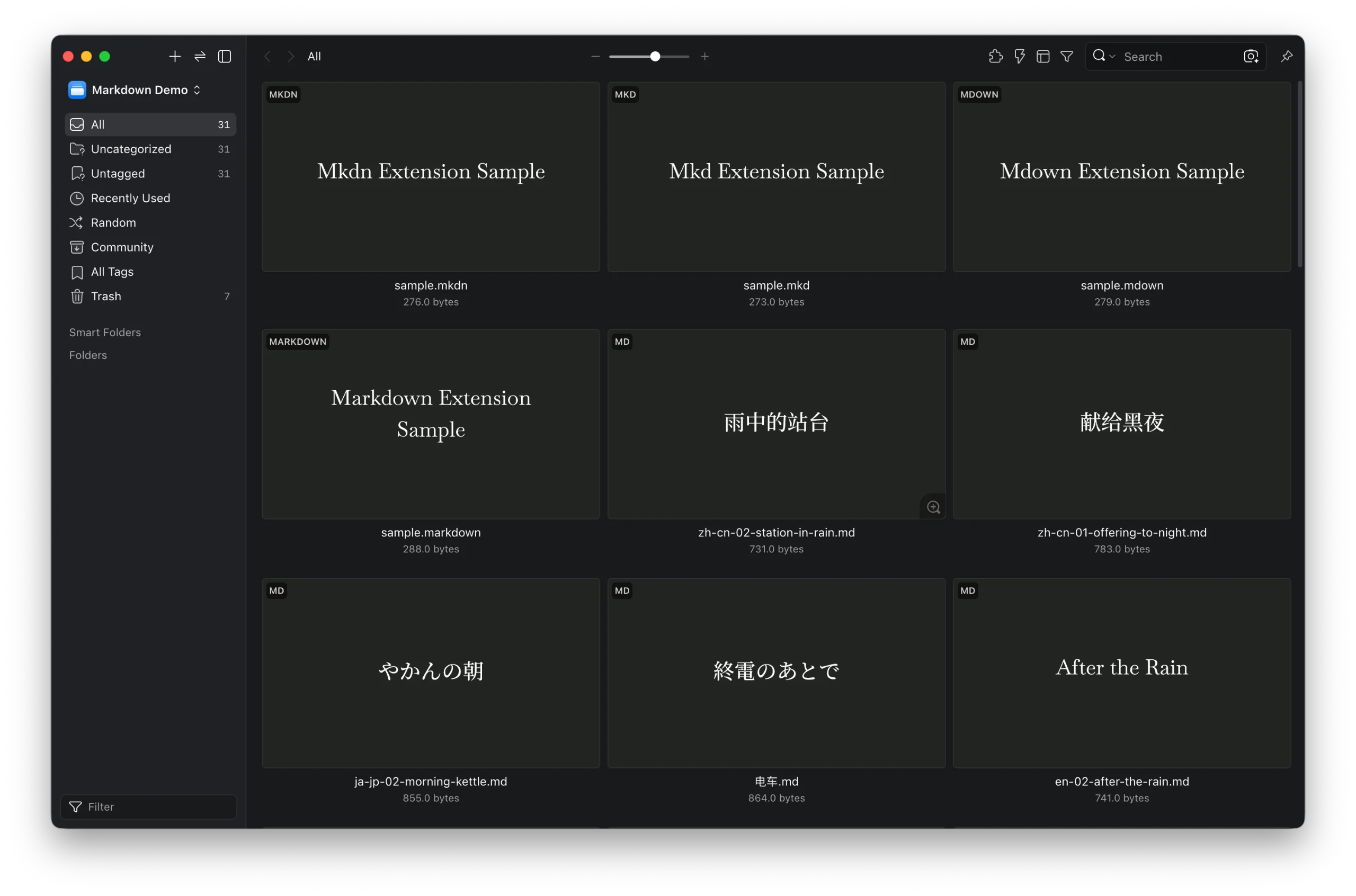
Find the “Markdown” plugin in Eagle’s Plugin Center. After installation, drag Markdown files from a folder into Eagle. Supported formats: .md, .markdown, .mdown, .mkd, .mkdn.
Use the Plugin
In Eagle, double-click a Markdown file to open it.
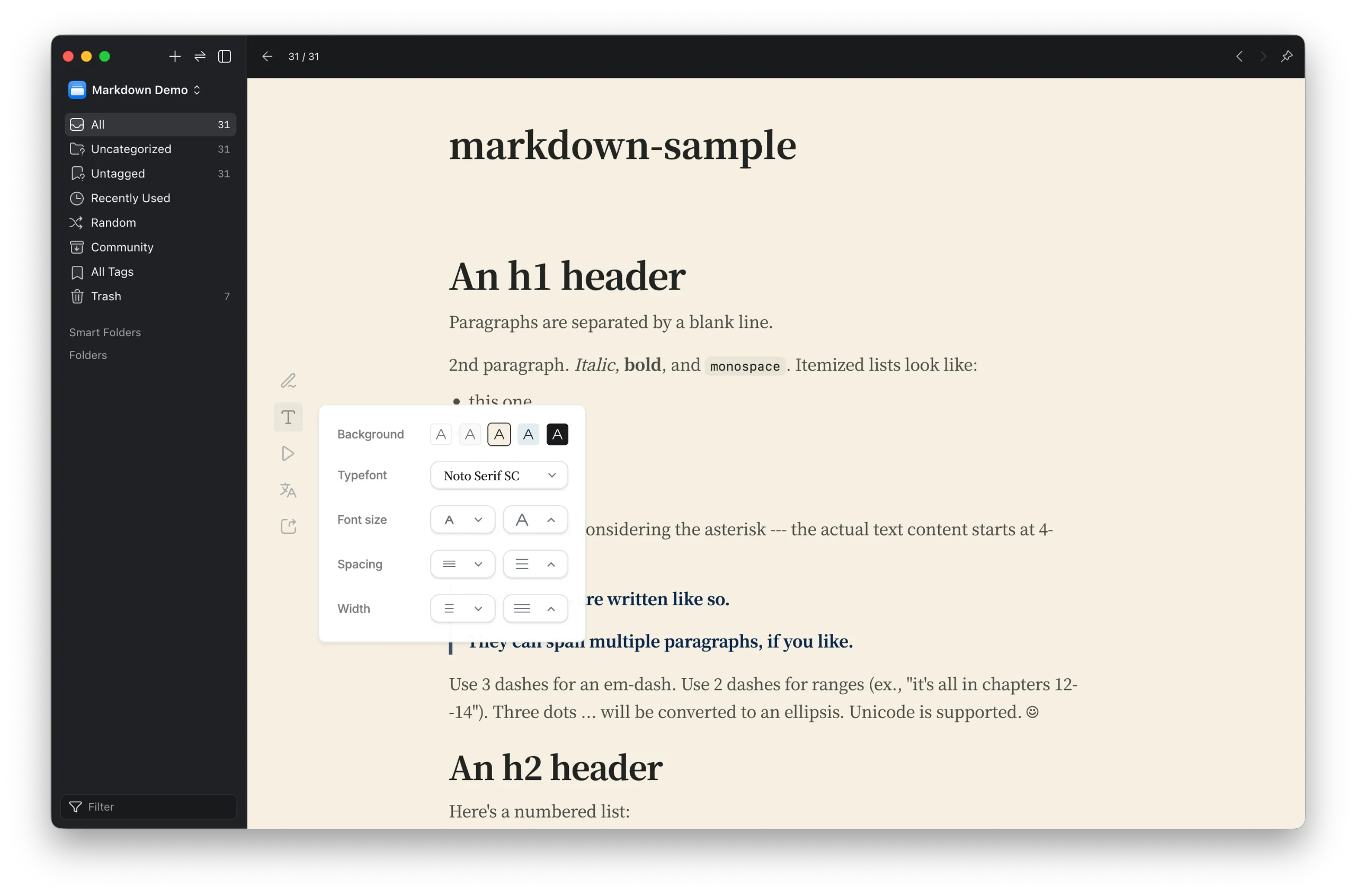
On the Markdown file detail page, the toolbar is on the left and provides the following features:
- Edit File: Edit Markdown files. Click to enter editing mode.
- Typography: Adjust the Markdown detail page background color, text font, font size, line height, and left/right spacing.
- Text-to-Speech: Read text aloud.
- Translate Text: Translate into the target language, with immersive translation support.
- Export: Copy highlights or copy the full text.
Edit File
Click the “Edit” button in the left toolbar to enter editing mode.
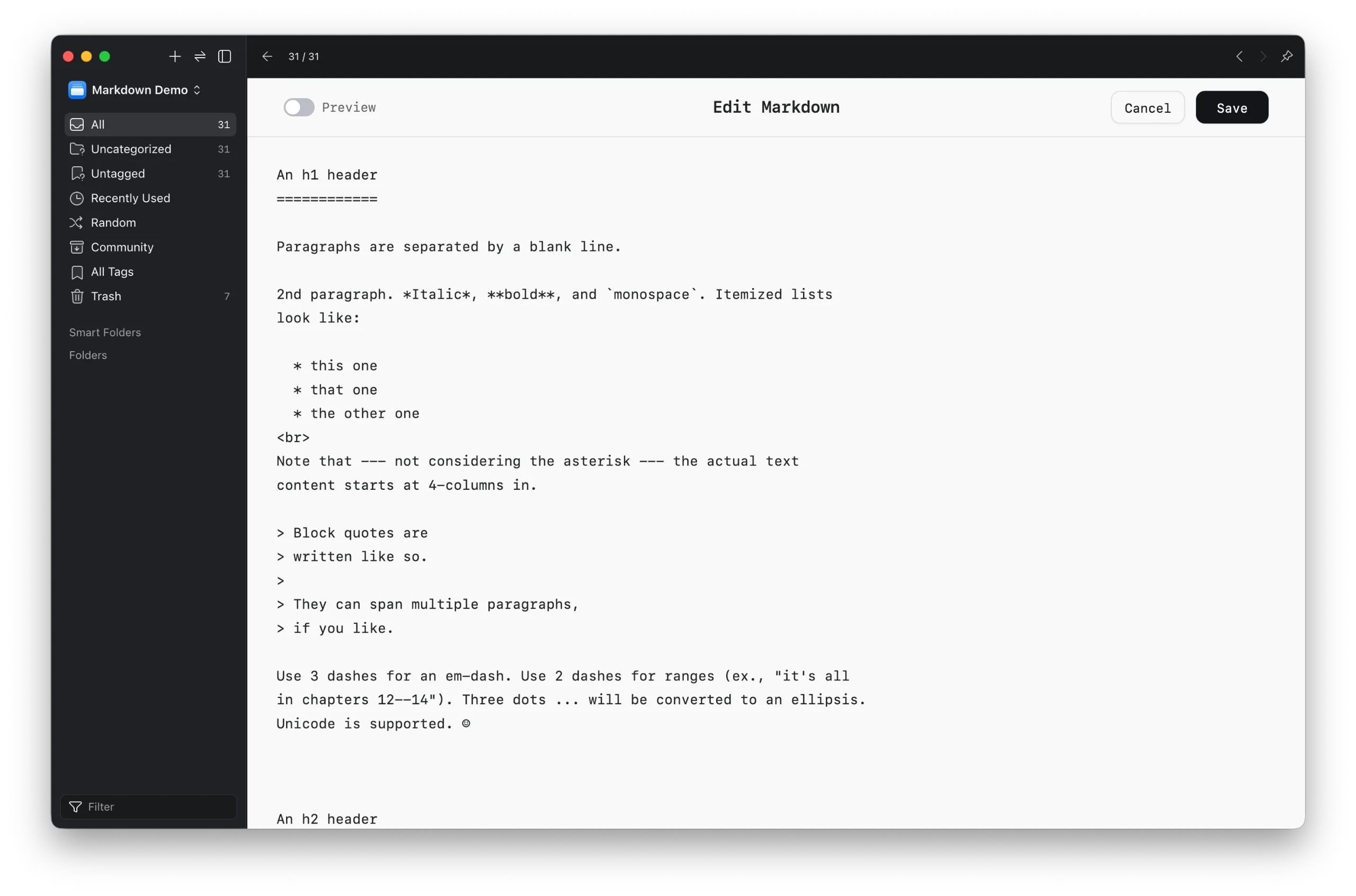
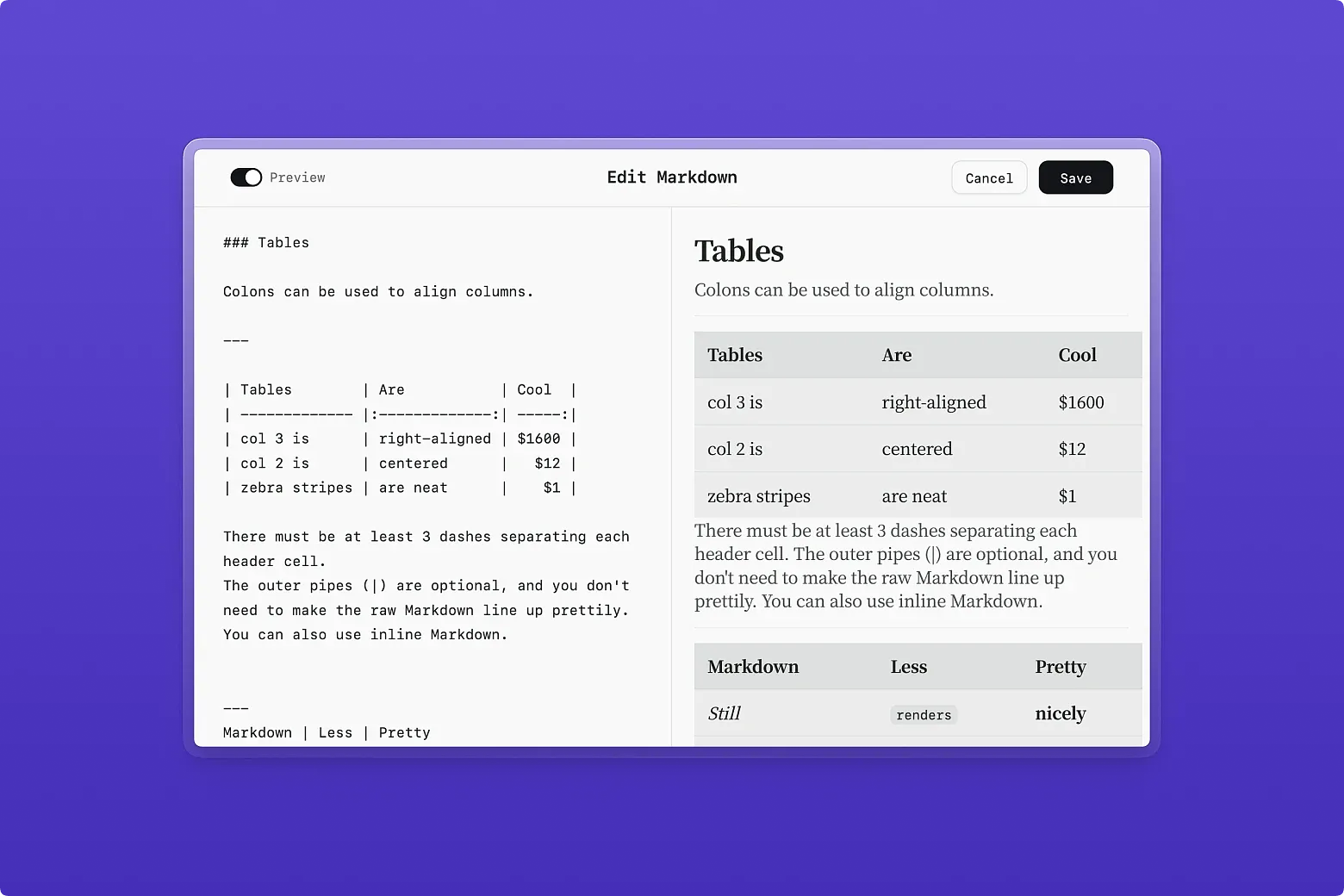
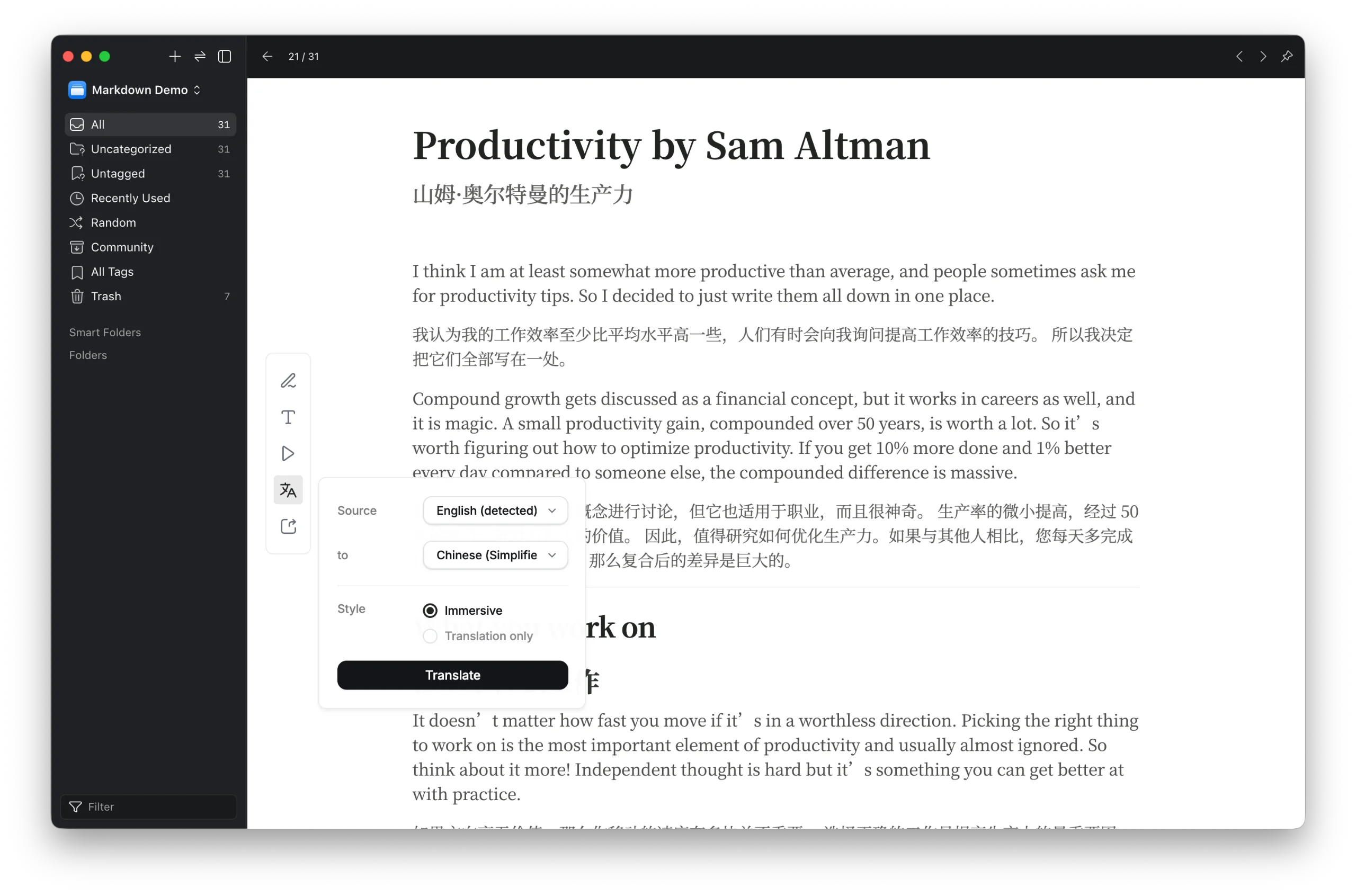
After entering editing mode, you can edit the Markdown file. When finished, click the “Save” button in the top-right corner to exit editing mode. Click the “Preview” switch in the top-left corner to view the editing result side by side.
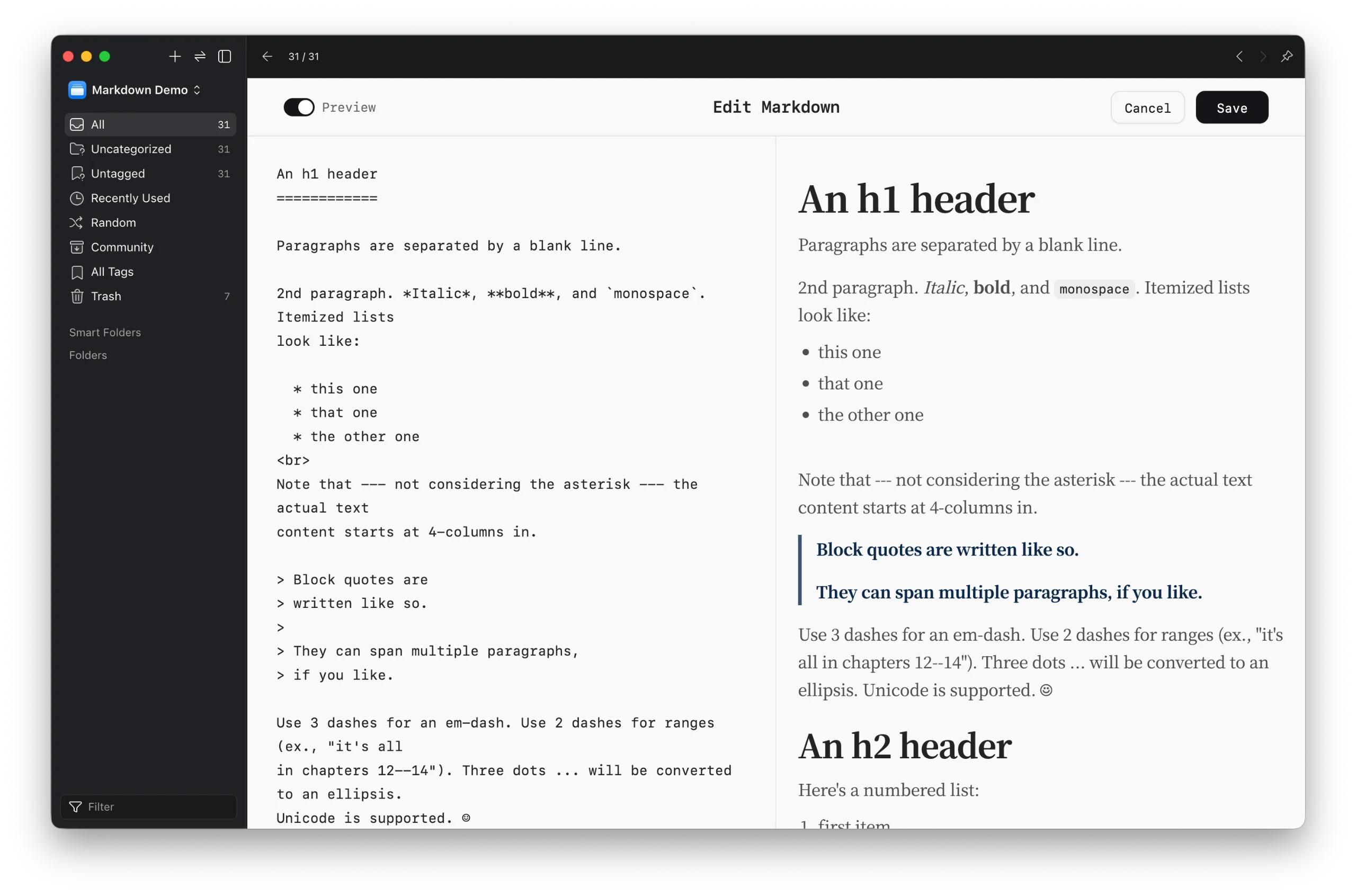
Typography
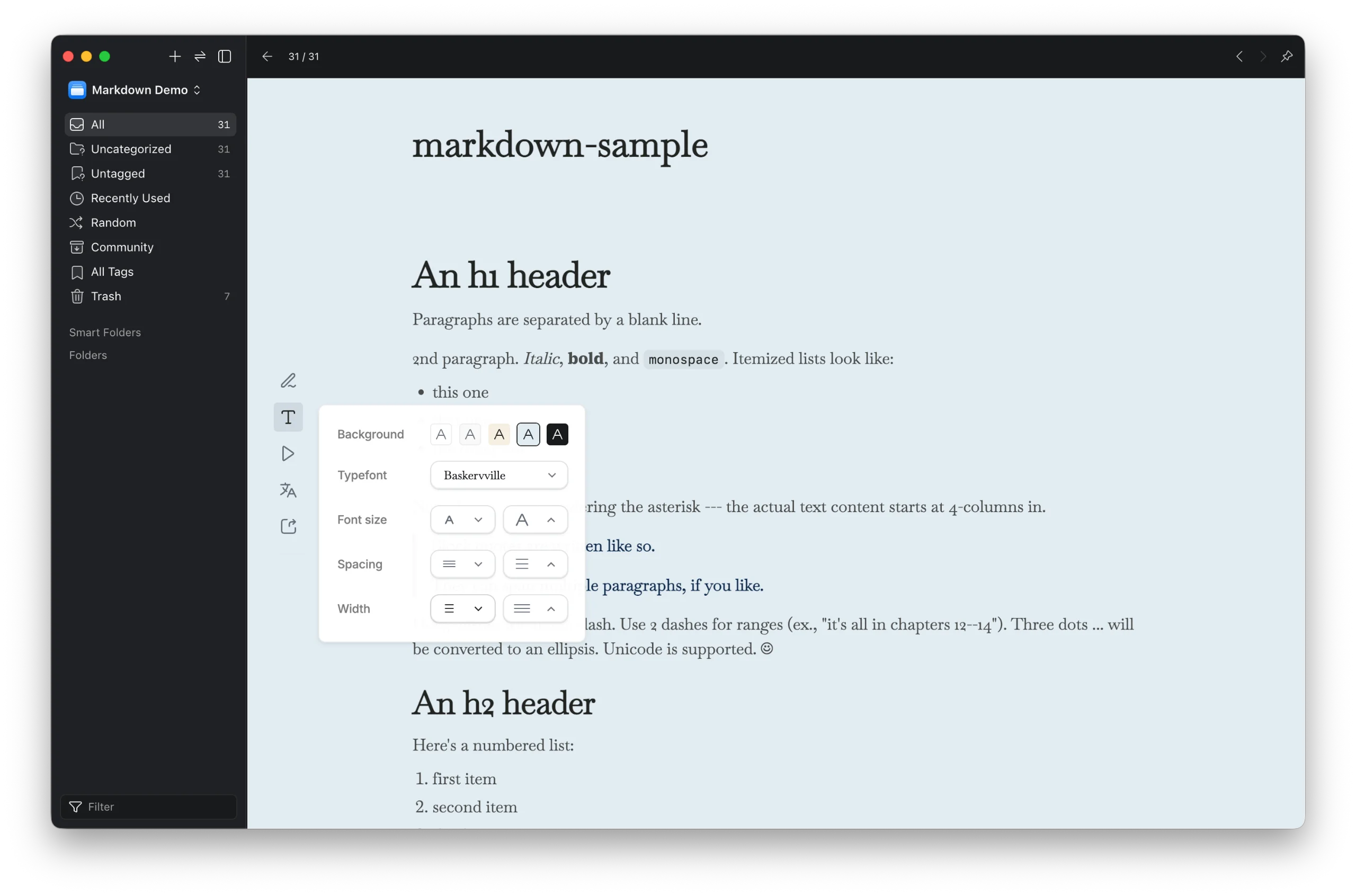
Text-to-Speech
Click the “Play” button in the left toolbar. In the panel, you can read text aloud. An audio player will also appear at the bottom of the detail page, where you can adjust playback progress and reading speed.
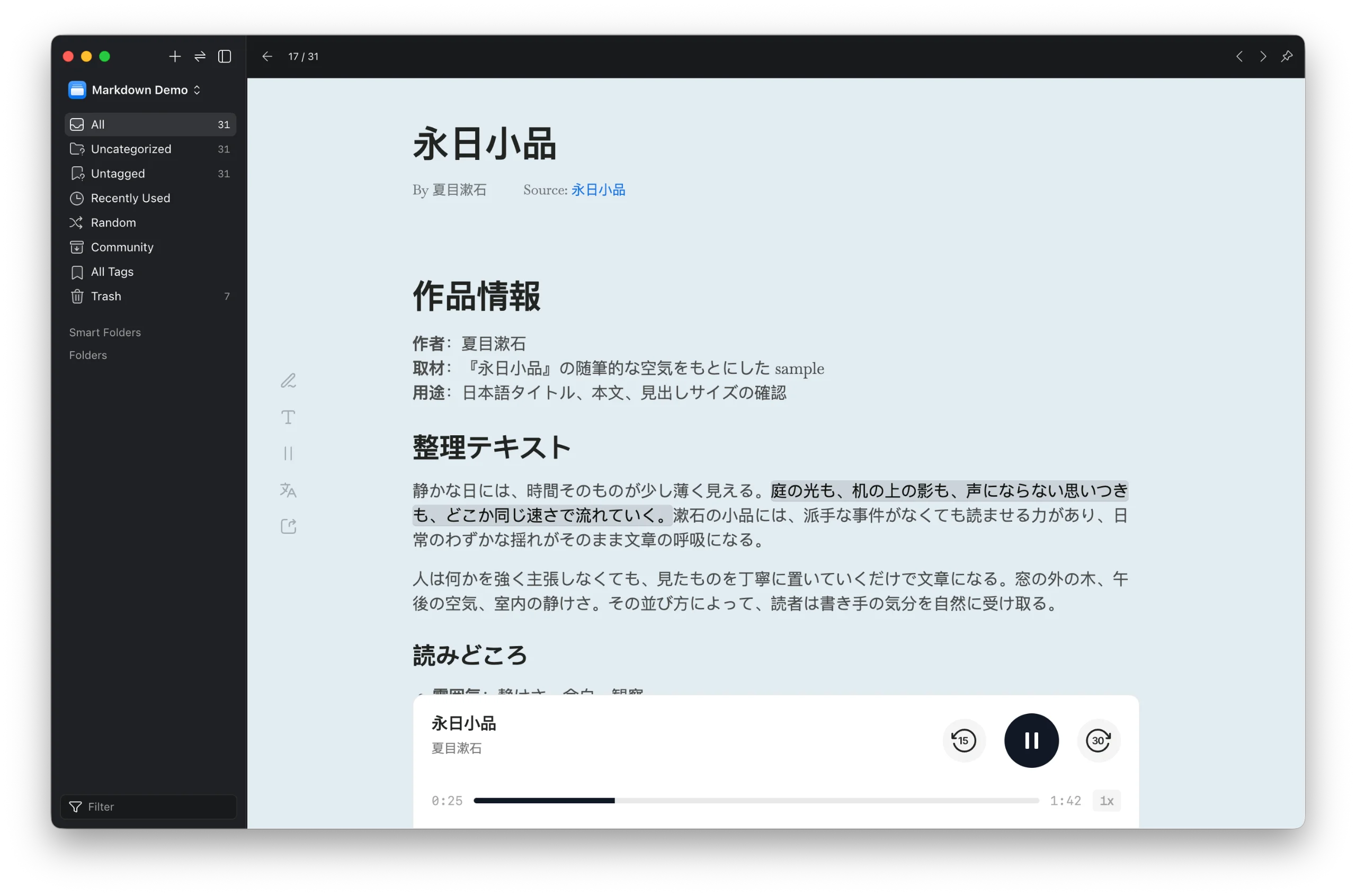
Translate Text
Click the “Translate” button in the left toolbar. In the panel, you can translate text into the target language, with support for side-by-side translation and translation-only display.
Export
Click the “Export” button in the left toolbar. In the panel, you can copy highlights or copy the full text.
Highlight Text
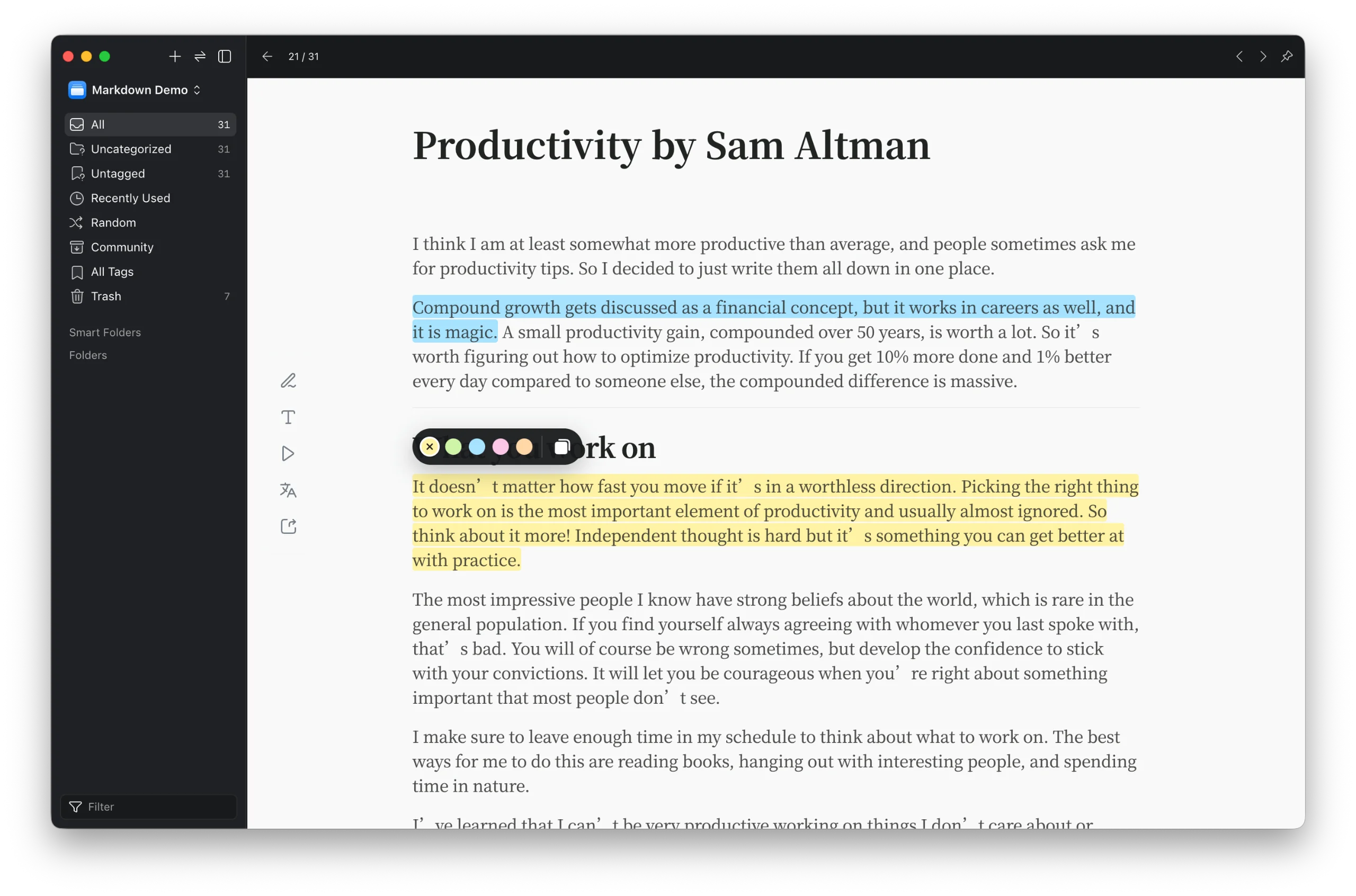
Drag to select text to highlight it. After highlighting, a highlight toolbar will appear, where you can switch highlight colors and copy the highlighted text.
In the left toolbar, click the “Export” button to copy all highlighted text.
Third-Party Dependencies
This plugin uses third-party services such as Google Translate for translation, Microsoft Edge TTS for text-to-speech, and Google Fonts for fonts. It starts a local HTTP bridge server on ports 41596–41605. These features require a network connection and may not work properly when the network is unavailable.
- Supports reading .md, .markdown, .mdown, .mkd, and .mkdn files.
- Supports editing Markdown files with live preview.
- Supports layout style adjustments.
- Supports reading Markdown files aloud.
- Supports translating Markdown files.
- Supports text highlighting.
You may also like