Float Browser
A floating, always-on-top viewer that pages through a folder's images with the mouse wheel or arrow keys. Open several windows to keep references from different folders on screen.
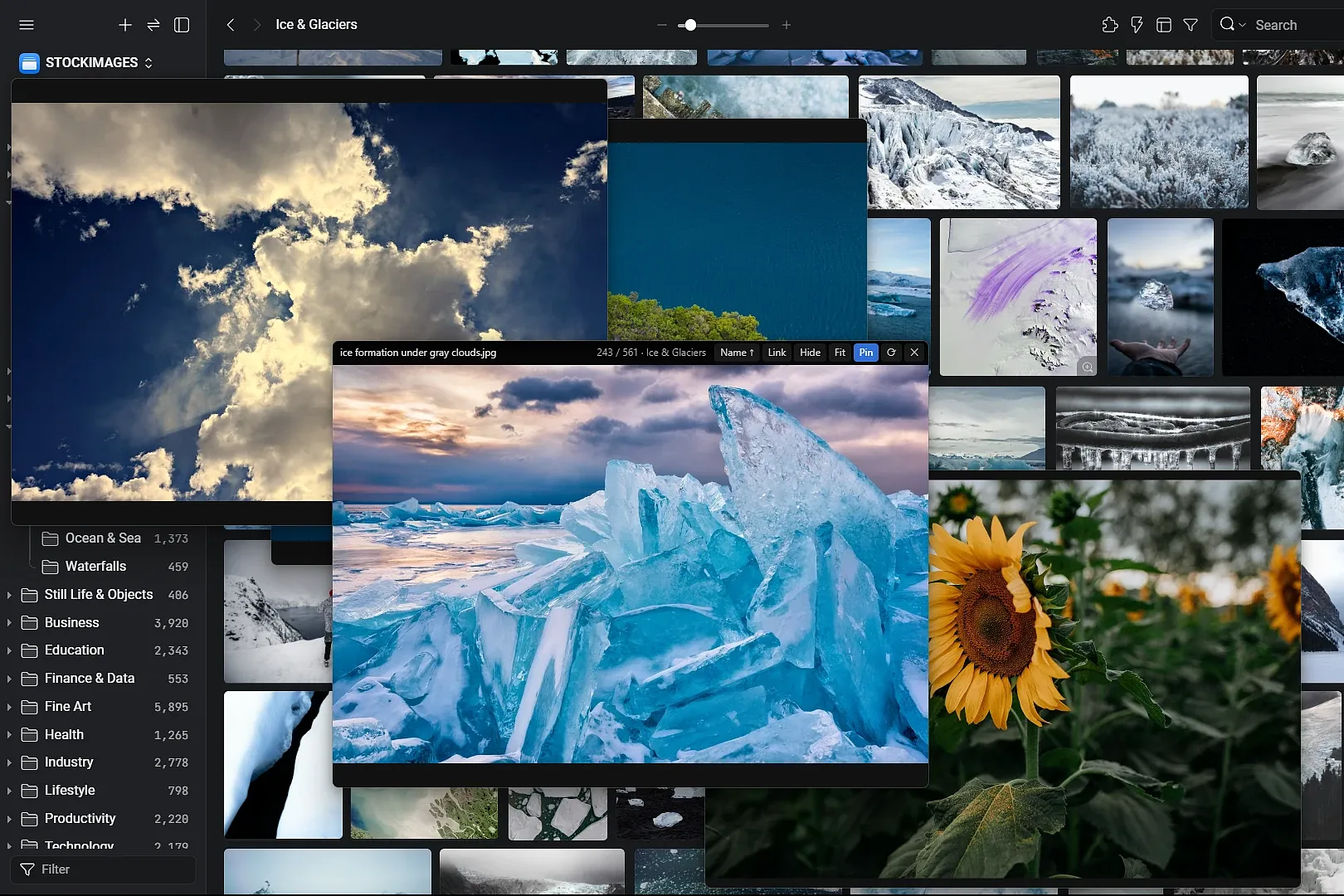
Float Browser opens the image you are looking at in a small frameless window that stays on top of other apps, and lets you step through the rest of its folder with the mouse wheel or arrow keys. It is made for keeping reference images beside the program you are working in.
Getting started
Select an image (or a folder) in Eagle.
Run Float Browser from the plugin panel.
Scroll or use the arrow keys to move through the folder.
What it shows
One image selected: every item in its folder, starting at that image.
Several images selected: only those images.
A folder selected: that folder, from the first item.
Features
Images scale to fill the window, enlarging or shrinking while keeping their proportions.
Several windows at once, each keeping its own folder. Press Ctrl+R in a window to switch it to Eagle's current selection.
Ctrl + wheel to zoom at the cursor, drag to pan, double-click to reset.
Hide the top bar (H or right-click) for a clean image-only window.
Sort by name, date added, date modified, size or type, ascending or descending.
Resize the window to the image's shape (F), toggle always-on-top (T), open the image in Eagle (Enter).
Optional "Link" mode selects the shown image in Eagle as you browse.
Interface in English, Simplified Chinese, Traditional Chinese, Japanese, Korean, Spanish, German and Russian.
Data and limitations
Float Browser only reads your library. It does not modify items, tags, folders or files, and makes no network connections.
Formats a browser can't display directly (such as PSD, RAW or video) are shown using Eagle's thumbnail.
Eagle's plugin API doesn't expose the sort order set in Eagle's grid, so Float Browser uses its own sort options, which may differ from your grid's order.
Initial release.
You may also like